Appearance
Update Process
This chapter covers how the User app updates itself. The Server app has no self-update mechanism of its own — updating it means re-running its installer, the same way you installed it in Chapter 1. Everything below is specific to the User app.
How it works
The User app has a built-in updater, and every update is signed so the app can confirm it really came from ClockBridge. It never installs anything without you clicking a button — checking and installing are both explicit, user-triggered steps.
It doesn't check a cloud server. Instead, the User app checks whichever Server it's currently connected to, over the same LAN connection it already uses for control. That server carries its own matching User-app installer and serves it itself, so checking for updates works offline, with no internet connection required.
This has one direct consequence: updates are own-platform only. A Server app only carries the User-app installer for the platform it itself was built on — a Mac-hosted Server carries the Mac User-app bundle, a Windows-hosted Server carries the Windows one. If your User app's platform doesn't match what the connected Server carries (a Windows machine talking to a Mac server, for example), the check simply reports no update available — the same result you'd get from already being current. Cross-platform serving isn't supported.
Checking for and installing an update
Open ⚙ Settings → Software Update in the User app (this section only appears in the User app; it's not shown in a browser tab or the Server app's own tray-opened control panel). It shows the app's own version next to the connected server's version, and an Update from Server button.
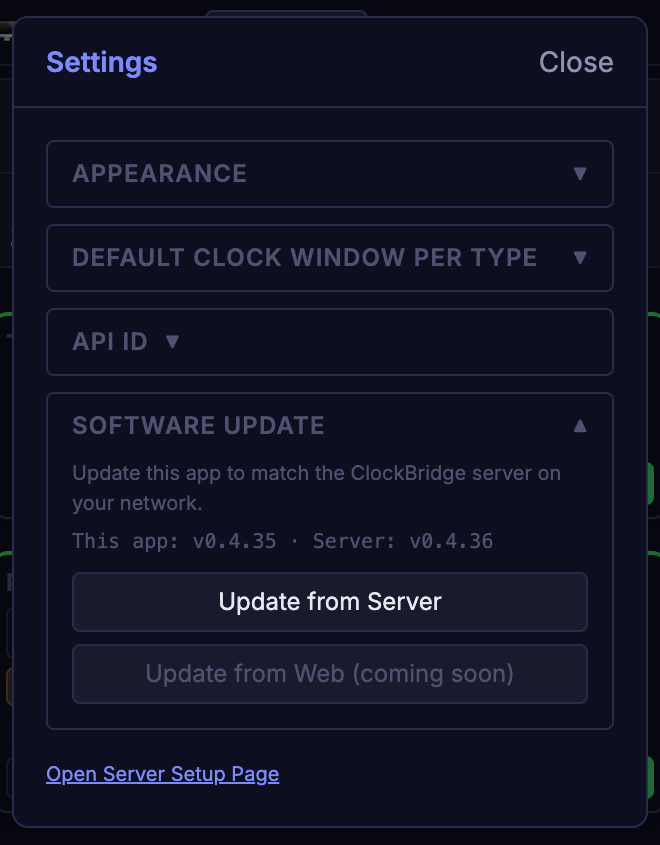
Clicking it checks the connected server. If nothing newer is available, a brief "You're already on the latest version" notice appears and clears itself. If an update is found, a banner appears at the top of the window:
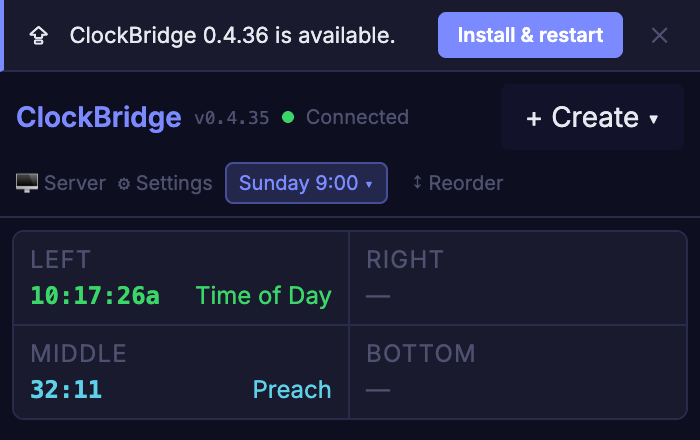
- Install & restart downloads the update, verifies its signature, and installs it in place, with progress shown in the banner the whole time.
- Once installed, the banner offers Restart now to relaunch into the new version. (On macOS, a known relaunch issue can leave the app running on the old version after clicking Restart — if that happens, the banner tells you to quit and reopen ClockBridge yourself to finish.)
A second button, Update from Web, is present but disabled — updating from a public source rather than the LAN server is planned but not available yet.
Signing
Every update is digitally signed, and the User app checks that signature before installing anything. An update that fails the check is never installed. This is separate from, and in addition to, ordinary Apple/Windows code signing.
In the rare case that ClockBridge has to change its signing key, User apps installed before the change can no longer verify new updates and stop updating themselves. Those installs need a manual reinstall from a fresh installer, the same way you'd install the app for the first time.