Appearance
User Preferences & Operator Handoff
The systems tech configures the app on
/setup, once, for the room. The operator opens the control panel on show night and just runs the show.
Every other chapter in this manual is about wiring something up — sources, outputs, control methods. This chapter covers a narrower idea: almost everything an operator sees or can do is decided in advance by whoever set up the server, not discovered or configured by the operator in the moment. The tech decides that once, on /setup, and it applies to everyone who opens the control panel afterward.
This chapter covers the three settings that make that true — Feature Toggles, Feature Defaults, and Default Clock Window Per Type — and then calls out the one corner of the app where that story doesn't hold: appearance.
Shared by the server vs. remembered per machine
Before the specifics, the one distinction that matters for everything below:
- Feature Toggles, Feature Defaults, and Default Clock Window Per Type are shared by the server. They're set once on
/setup(or, for Default Clock Window, in the control panel's Settings panel — which changes the same server-side setting), the server stores them, and every control panel that connects — this machine, that tablet, the laptop at FOH — gets the identical configuration the moment it connects. Change one, and every connected operator's control panel updates live, without a page reload. - Skins are not. Each machine remembers its own. Covered in full at the end of this chapter — read that section before assuming any preference described here follows an operator around.
Feature Toggles — hiding whole capabilities
Feature Toggles are on/off switches for the capabilities the control panel can offer. They live in the UI Features section of /setup, each one a checkbox with a one-line description of what it does, for example:
- Messages — "Allow text message timers in the control interface"
- External Sources — "Enable timers driven by third-party apps and devices"
- Scheduled Timers — "Create timers that start automatically at scheduled times"
- Create Dropdown — "Replace the create toolbar with a dropdown button in the top bar"
- Preview Bar — "Show the output preview panel at the top of the control interface"
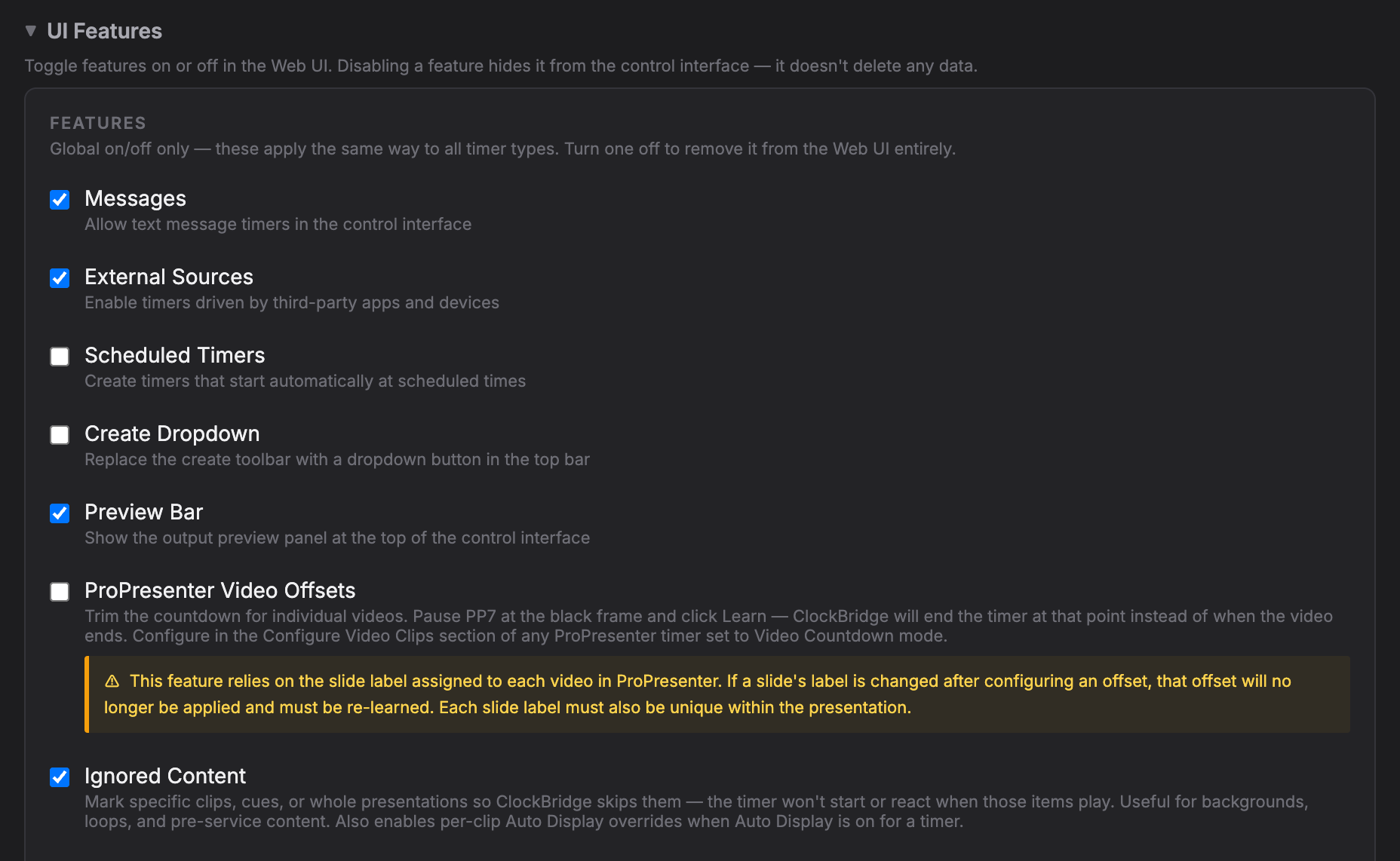
What starts on and off. On a new server, Messages, Auto-cue, Shared, and Flash on overrun start off, so the control panel is as plain as possible until the tech chooses to add them. ProPresenter Video Offsets and Ignored Content start on. A server that already has its settings saved keeps them; these starting states only apply to a fresh install, or to a setting the server hasn't stored yet.
These aren't cosmetic. When a toggle is off, the part of the control panel it controls is removed completely — not grayed out. There's no disabled button for an operator to wonder about, because there's nothing there at all.
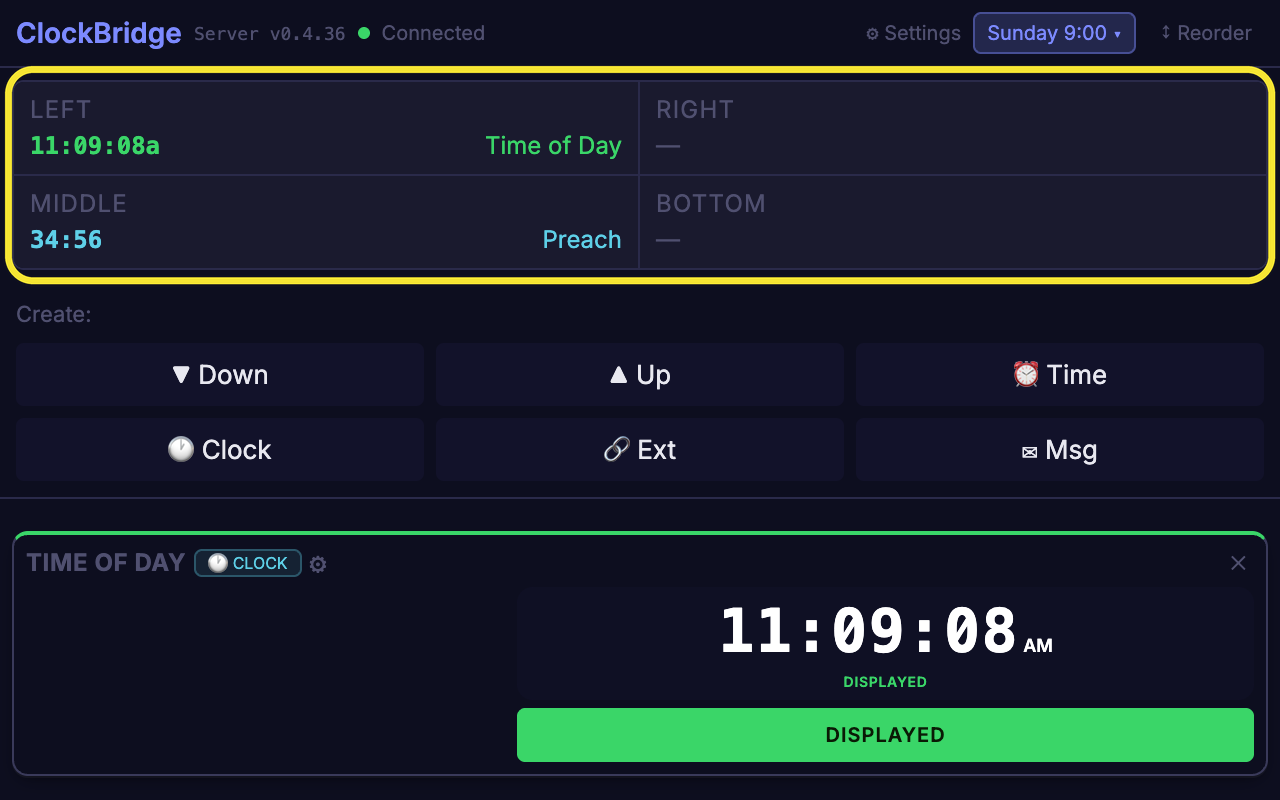
Preview Bar
Shows or hides the output-preview strip at the top of the control panel — the live view of what each Clock Window is showing. Turn it off for an operator who only needs the timer list.
Create Dropdown
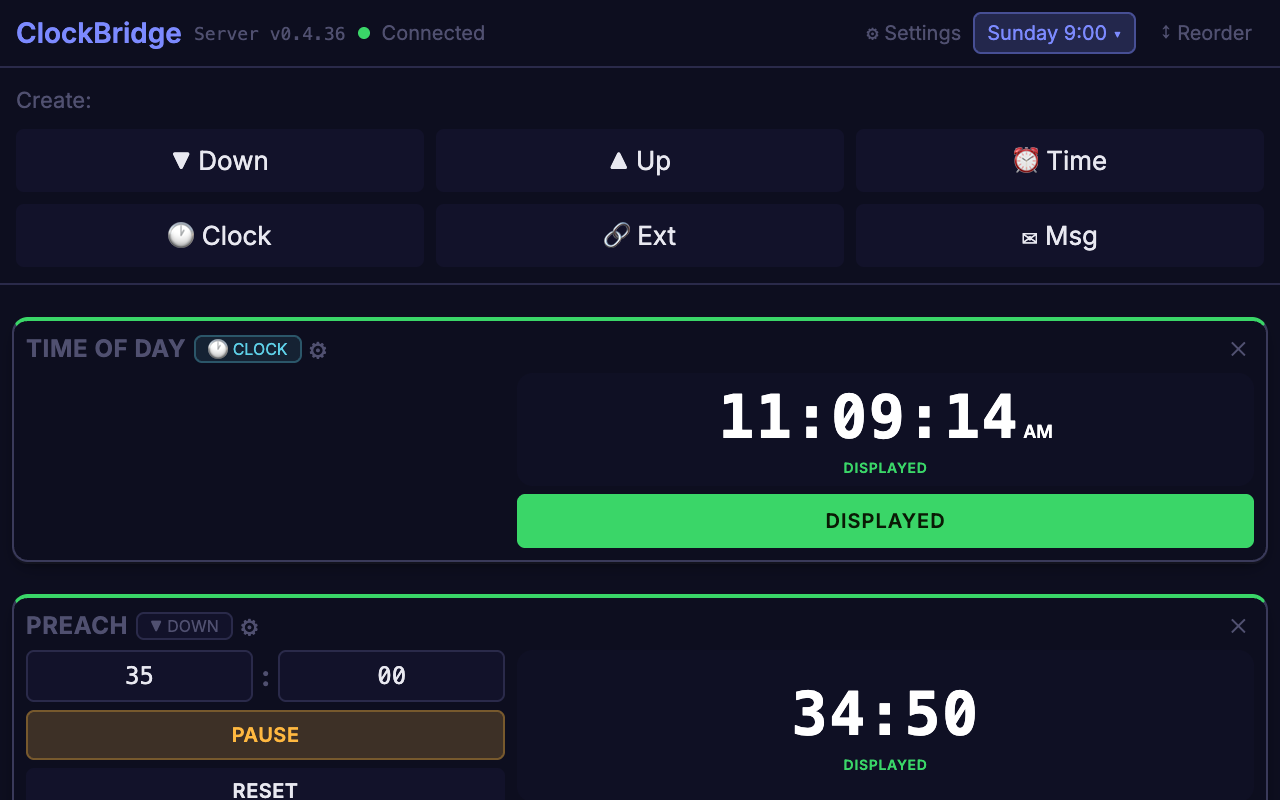
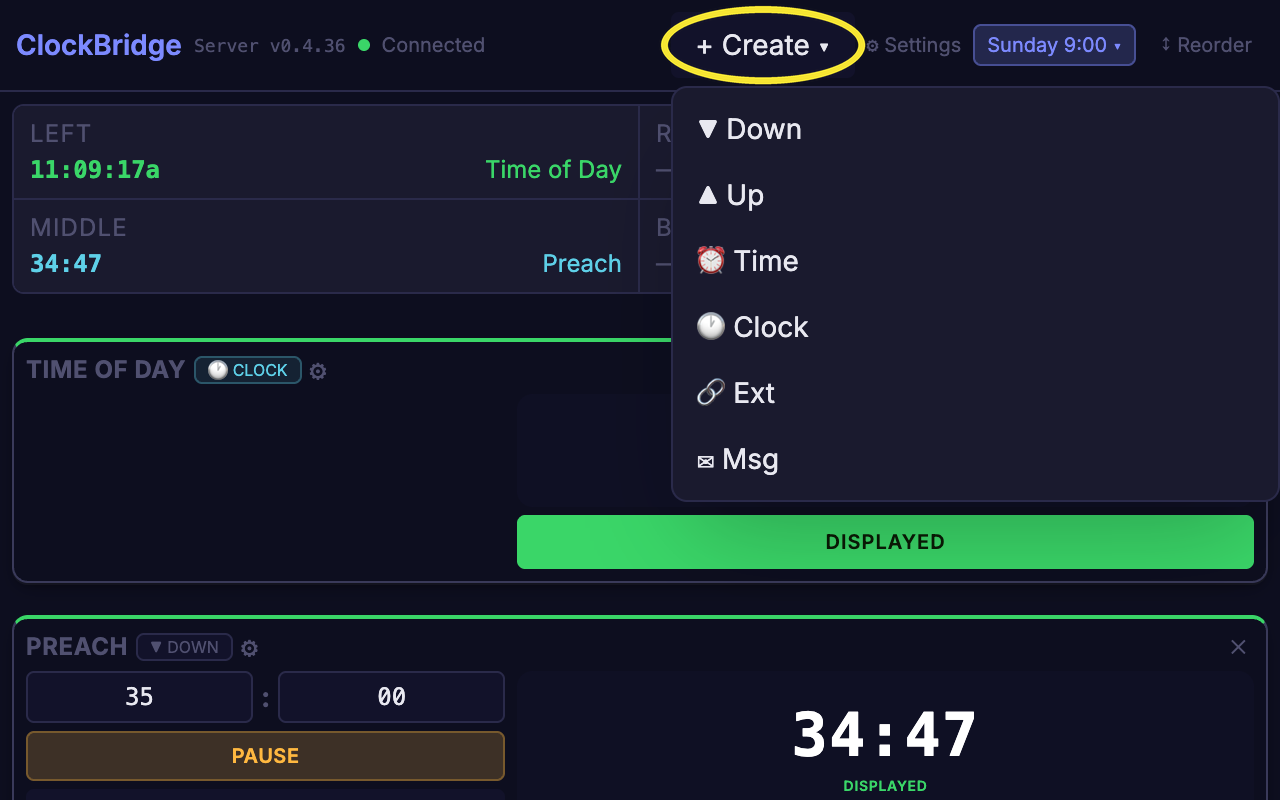
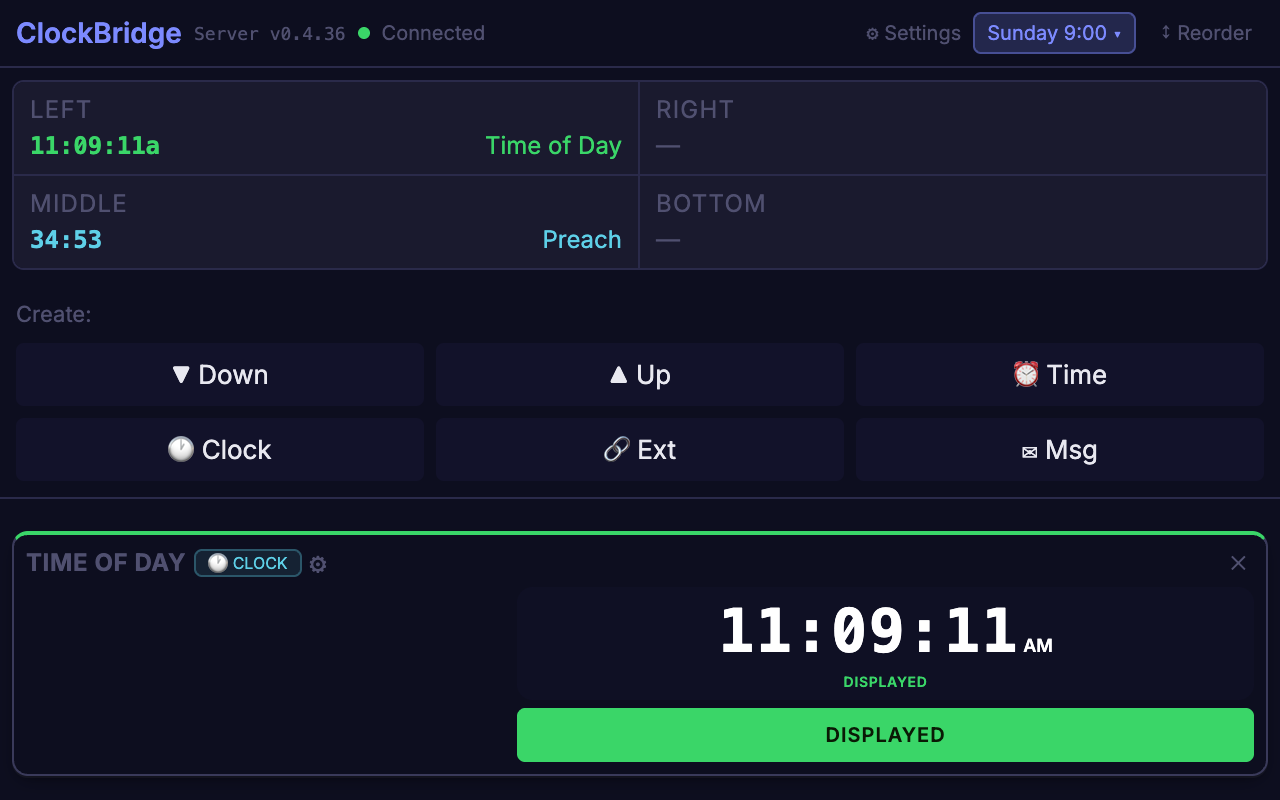
Changes where the create buttons live. On, they move into a + Create ▾ menu in the top bar, which saves vertical space. Off (the default), they sit in a grid under the preview strip, always visible.
Messages
Turns the Message timer type on or off. When it's off, the ✉ Msg create button disappears, so operators can't create Message timers.
External Sources
Turns the External timer type on or off — timers driven by another app or device, such as ProPresenter or QLab (Chapter 3). When it's off, the 🔗 Ext create button disappears, so operators can't create External timers.
SMPTE
Turns the SMPTE timer type on or off. When it's off, the ◈ SMPTE create button disappears. Unlike the others, this one is switched on from the SMPTE / LTC section of /setup rather than the UI Features list.
The per-type grid
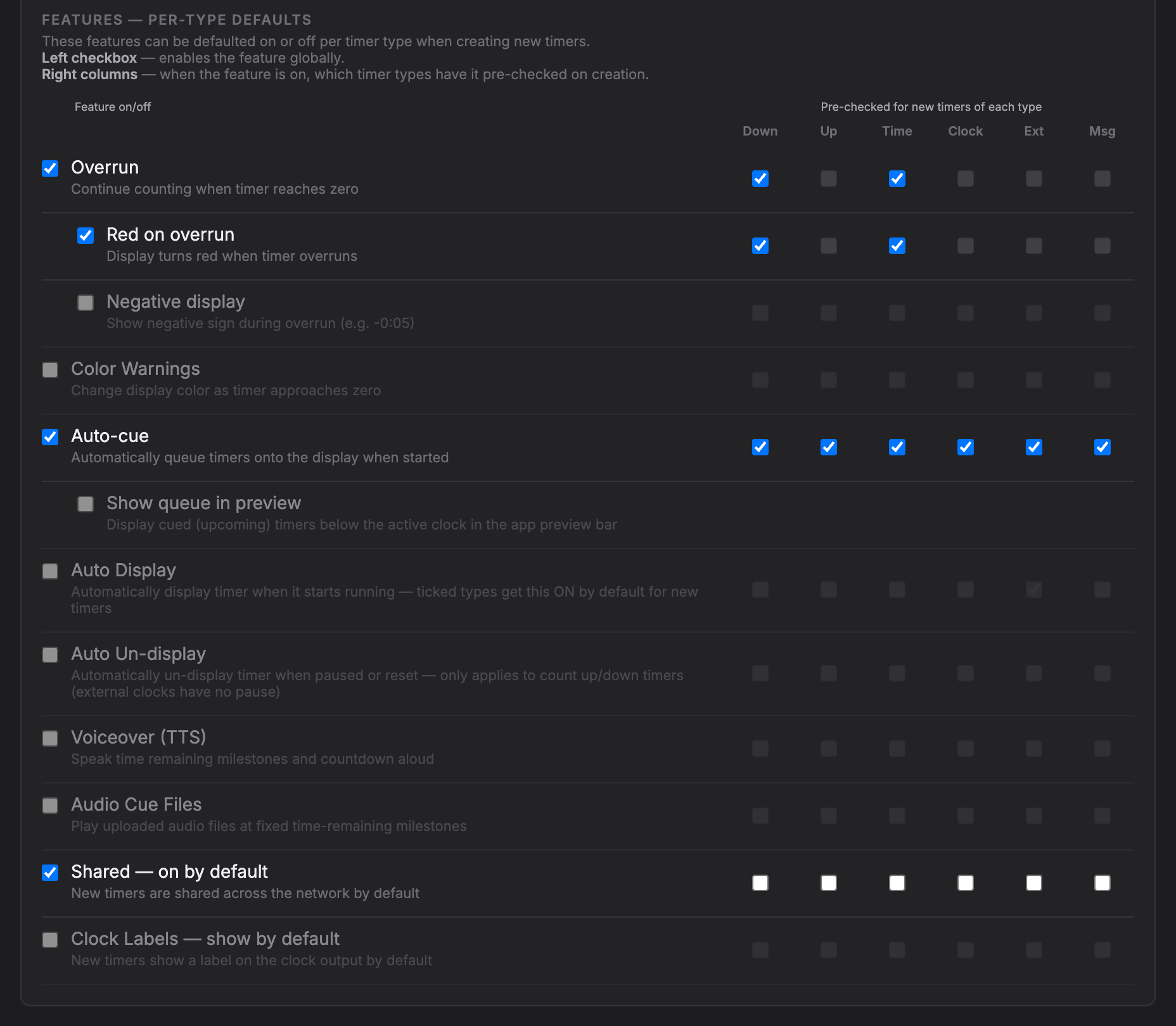
Below that general list, /setup also has a second grid of feature toggles — Overrun, Red on overrun, Negative display, Color Warnings, Progress bar, Auto-cue, Auto Display, Auto Un-display, Voiceover (TTS), Audio Cue Files, and the "on by default" toggles for Shared and Clock Labels — each with its own per-timer-type column. The checkbox on the left of each row is the toggle: turning it off removes that capability from the control panel entirely, for every timer of every type. Turning it on makes the capability available, but doesn't decide whether new timers actually use it. That decision is Feature Defaults, next.
Progress bar
The Progress bar row in the per-type grid lets Down and Time timers show a progress bar (see Chapter 6a). It's off by default, and it has no per-type columns. When it's ticked, a Show progress bar tick box appears on those two kinds of timer. A bar only shows on a Clock Window that has Progress bar switched on in its own settings (Chapter 2), so the tech decides which windows get one and how it looks.
Flash on overrun
In the per-type grid, directly under Red on overrun, /setup has a Flash on overrun row. Ticking it adds a flash tick box to every timer that can overrun (it also needs Overrun to be on, and it grays out with Overrun like the other rows under it). It's off by default. It has no per-type columns, since the tick box is on each timer.
Two more settings sit inside that row, and both are for the whole server, not per timer. Operators don't get a choice of either:
- Flash style — what the flash alternates between. Red and normal colour (the default) swaps the text between red and its normal color. Normal colour and off (black) swaps it between its normal color and nothing, so the digits disappear and the output goes black. If the Clock Window has a background color, that stays on screen while the digits are off.
- Flash interval (ms) — how long each look shows before it switches. The default is 500, which is one full blink per second. The allowed range is 100 to 5000; a value outside that range is pulled back to the nearest limit when you leave the field.
Both fields are grayed out while the feature is off.
For what each of these features does in the control panel, with screenshots, see Features in the Control Panel (the next chapter).
Feature Defaults — what a new timer starts out as
Feature Toggles decide whether a capability exists at all. Feature Defaults decide whether a newly created timer starts out using that capability, separately for each timer type: Down, Up, Time, Clock, Ext, and Msg. (SMPTE timers have no per-type defaults, since they only display incoming timecode.)
On /setup, Feature Defaults are the columns of checkboxes to the right of each Feature Toggle, under Pre-checked for new timers of each type. A ticked box means every new timer of that type is created with that feature already turned on. A column's checkboxes are grayed out whenever the toggle for that row is off — or its parent row is off: Overrun controls Red on overrun and Negative display, and Auto-cue controls Show queue in preview.
In practice: if the tech ticks Auto Display in the Ext column, then every time an operator clicks 🔗 Ext, the new timer is created with Auto Display already on. The operator never sees a switch to flip, because there's nothing to decide.
Out of the box, the defaults are:
- Auto-cue — on for every timer type (once the Auto-cue toggle itself is turned on).
- Overrun and Red on overrun — on for Down and Time timers.
- Auto Display — on for Ext timers (once the Auto Display toggle itself is turned on).
So in a room using those defaults, a countdown timer an operator creates keeps counting past zero and turns red automatically.
Like Feature Toggles, a change here is saved on the server and pushed to every connected control panel straight away.
Default Clock Window Per Type — pre-wiring where a new timer goes
Chapter 4 introduced this briefly; here's the full picture. In the control panel's ⚙ Settings panel, the Default Clock Window Per Type section has one dropdown per timer type — Down, Up, Time, Clock, External, Message — each listing the room's actual Clock Windows, plus None. If Messages or External Sources is switched off on the Server page, that type's dropdown is hidden.
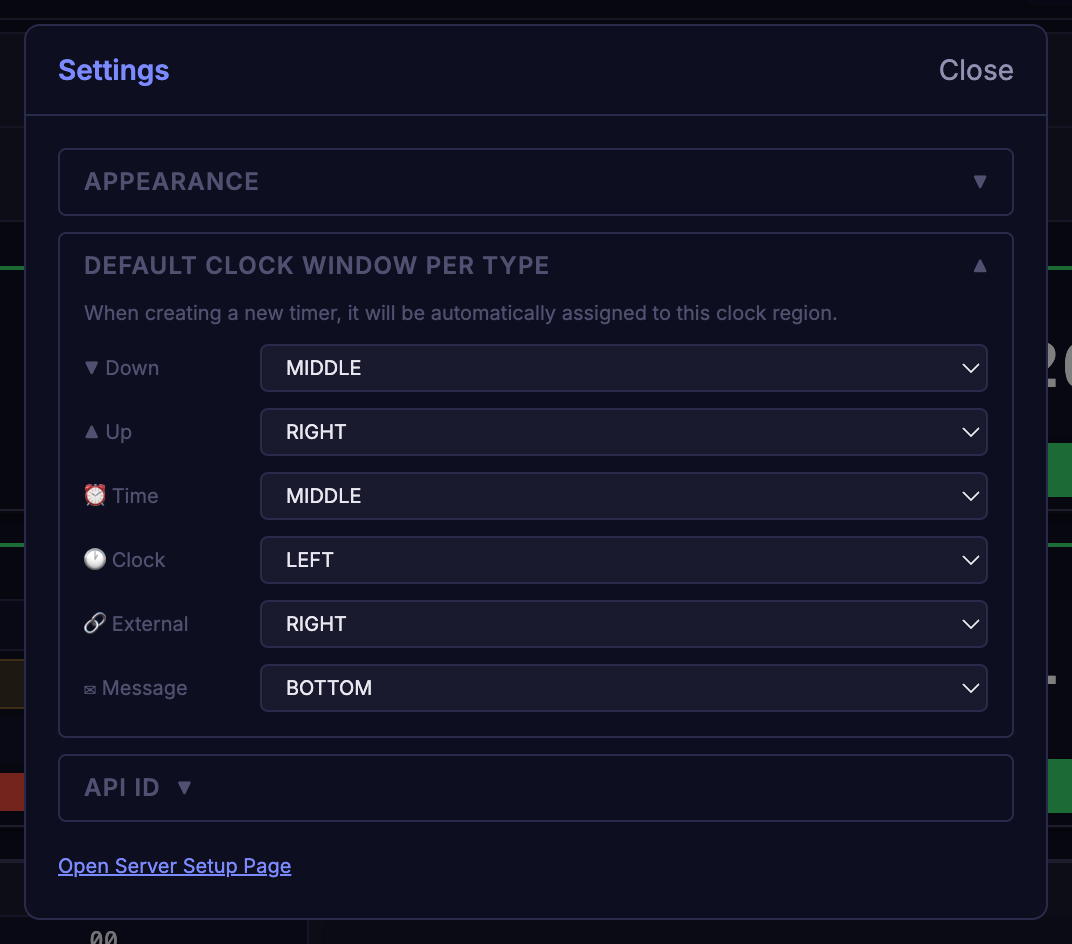
Pick a Clock Window for a timer type, and every new timer of that type is created already assigned to that window. Leave it on None, and new timers of that type are created unassigned, waiting for the operator to choose a window.
So the full chain for, say, the ⏰ Time button is: the tech picks "MIDDLE" as the Time default → the server stores it and pushes it to every control panel → the operator clicks ⏰ Time → the new countdown-to-time timer is created already targeting MIDDLE, with the Feature Defaults for Time timers already applied on top. The operator picked a timer type. Everything else — where it displays, whether it turns red on overrun, whether it auto-displays — was already decided.
Like Feature Toggles and Feature Defaults, this setting is stored on the server and shared: change it from one control panel, and it applies to every operator who creates a new timer of that type afterward, on any machine.
The one exception: skins are per machine
Everything above — Feature Toggles, Feature Defaults, Default Clock Window Per Type — is decided once by the tech and pushed to every operator's control panel from the server. Appearance is the one preference in this entire chapter that works the opposite way.
The Appearance section of the ⚙ Settings panel (Chapter 4) offers four skins — Classic, Dark, Light, and Fluoro. All four are built for high contrast: the greys and borders stay readable, and the status colours on Classic, Dark and Light (blue, yellow and magenta rather than green and red) are safe for red-green colour blindness. Fluoro keeps its own yellow and red. There is no separate High Contrast switch. On Light, each clock readout sits in a dark panel so the bright status colours read the same as on the dark skins. Whatever you pick is remembered by that machine only. Nothing is sent to the server, and nothing changes on any other connected machine.
This means: the FOH laptop can run Dark, the stage manager's tablet can run Fluoro, and the tech's own machine can run Light — all connected to the same server, all showing the same timers, each machine keeping its own skin, with no machine's setting overwriting another's. Reinstalling the app, or clearing that browser's saved site data, resets the skin to Classic (the default) on that machine only — every other machine keeps whatever it had. There is no "set the house skin" switch on /setup; skin selection is per machine only.
If you're the tech and an operator asks why their machine looks different from yours: this is why, and it's expected — pick a skin on the machine you're standing at, not for the room.
Summary
| Preference | Set where | Applies to |
|---|---|---|
| Feature Toggles | /setup → UI Features (and the SMPTE / LTC section, for SMPTE) | Every connected control panel, updated live |
| Feature Defaults | /setup → UI Features, per-type columns | Every new timer, on every machine |
| Default Clock Window Per Type | Control panel → ⚙ Settings → Default Clock Window Per Type | Every new timer, on every machine |
| Skins | Control panel → ⚙ Settings → Appearance | That machine only |
Configure the first three once, before handing the room to an operator. Let the fourth be whatever's comfortable at each seat.