Appearance
External Sources
Connect to other ClockBridge instances on your network, or to supported external clock sources, to pull in timers as external inputs.
This section of /setup is where ClockBridge is told about other software and hardware on the network whose running clocks it can borrow. Every connection you add here is a data source: something ClockBridge reads a countdown or clock value from. It is not the same direction as the Control Methods covered in a later chapter — OSC, RossTalk, and Companion are ways other systems send commands to ClockBridge (start, stop, load a cue). External Sources never send commands to ClockBridge and ClockBridge never sends commands to them; it only reads their current time.
Adding a connection here is also only the first half of putting an external clock on screen. This section defines where a value can come from — it doesn't attach that value to anything yet. The second half, creating an External timer and pointing it at one of these connections, is covered in Chapter 4 — The Control Panel.
Adding a connection
The Type dropdown lists every supported source:
- ProPresenter
- ClockBridge
- QLab
- HyperDeck
- Resolume
- ProVideoPlayer (PVP)
- FreeShow
- PCO Live — only appears in the list once Planning Center integration has been enabled and its App ID/Secret saved elsewhere on
/setup. Until then, this option is simply absent from the dropdown.
Choosing a type fills in sensible defaults and swaps the form underneath it:
| Type | Default port | IP Address field |
|---|---|---|
| ProPresenter | 1025 | shown |
| ClockBridge | 4500 | shown |
| QLab | 53000 | shown |
| HyperDeck | 9993 | shown |
| Resolume | 8080 | shown |
| ProVideoPlayer (PVP) | 8443 | shown |
| FreeShow | 5506 | shown |
| PCO Live | — (port forced to 0) | hidden |
Every connection (other than PCO Live) gets these fields:
- Name — a free-text label for the connection (e.g. "Main Aud", "Main Aud CB", "QLab Mac" — the placeholder text changes per type).
- IP Address — the source machine's address. Hidden for PCO Live (which talks to Planning Center's API, not a LAN address).
- Port — pre-filled from the table above, editable.
- Latency (ms) — a numeric offset,
-5000to5000, applied to the incoming time value. Use it to compensate for a source that reports slightly ahead of or behind real time.
Clicking Add & Connect saves the connection and immediately attempts to connect to it.
Per-type setup notes
The form shows a short reminder underneath the fields, specific to the selected type, about what has to be enabled on the source side before ClockBridge can reach it:
- ProPresenter — "On the ProPresenter machine: Preferences → Network — enable Network and note the port."
- ClockBridge — "The remote ClockBridge must be running and reachable. Timers must be marked Shared to appear as sources."
- QLab — "In QLab: Workspace Settings → OSC — enable Use OSC Controls and confirm the port (default 53000)." QLab connections are also flagged as OSC/UDP in the connection list.
- HyperDeck — "In HyperDeck Setup: enable Remote Control. The deck must be on the same network."
- Resolume — "In Resolume: Preferences → Web Server — enable Enable Web Server. Default port is 8080."
- ProVideoPlayer (PVP) — "In PVP: Preferences → Network API — enable the API and note the HTTPS port (the HTTP port will not work). Enter the HTTPS port here." Note the HTTPS requirement — the plain HTTP port PVP also exposes will not work for this connection.
- FreeShow — "In FreeShow: Settings → Connection — enable Remote and note the port (default 5506)."
- PCO Live — "Planning Center must be enabled and configured on this server. Select the service type and plan you want to follow live."
ClockBridge as a source
ClockBridge is in its own InstanceType list, meaning one ClockBridge server can pull a timer from another ClockBridge server as an external source — for example, a lobby or overflow-room server following the main auditorium server's countdown. The requirements are the same as any connection: the remote server must be running and reachable at the address and port entered here (default 4500, matching the Server app's default listening port), and its timers must be marked Shared for them to show up as selectable sources once you get to Chapter 4.
Planning Center Live (PCO)
When PCO Live is available and selected, the form replaces the IP Address/Port fields with three PCO-specific fields instead:
- Label Prefix — defaults to
PCO, used to prefix the names of any timers created from this connection. - Service Type — a dropdown populated live from Planning Center's API once you reach this step.
- Plan — a dropdown populated live once a Service Type is chosen, listing that service type's upcoming plans by date (and title, where the plan has one).
Both Service Type and Plan must be selected before Add & Connect will save the connection. There's no host or port to fill in, since this connection talks to Planning Center online rather than a device on your network.
Existing connections
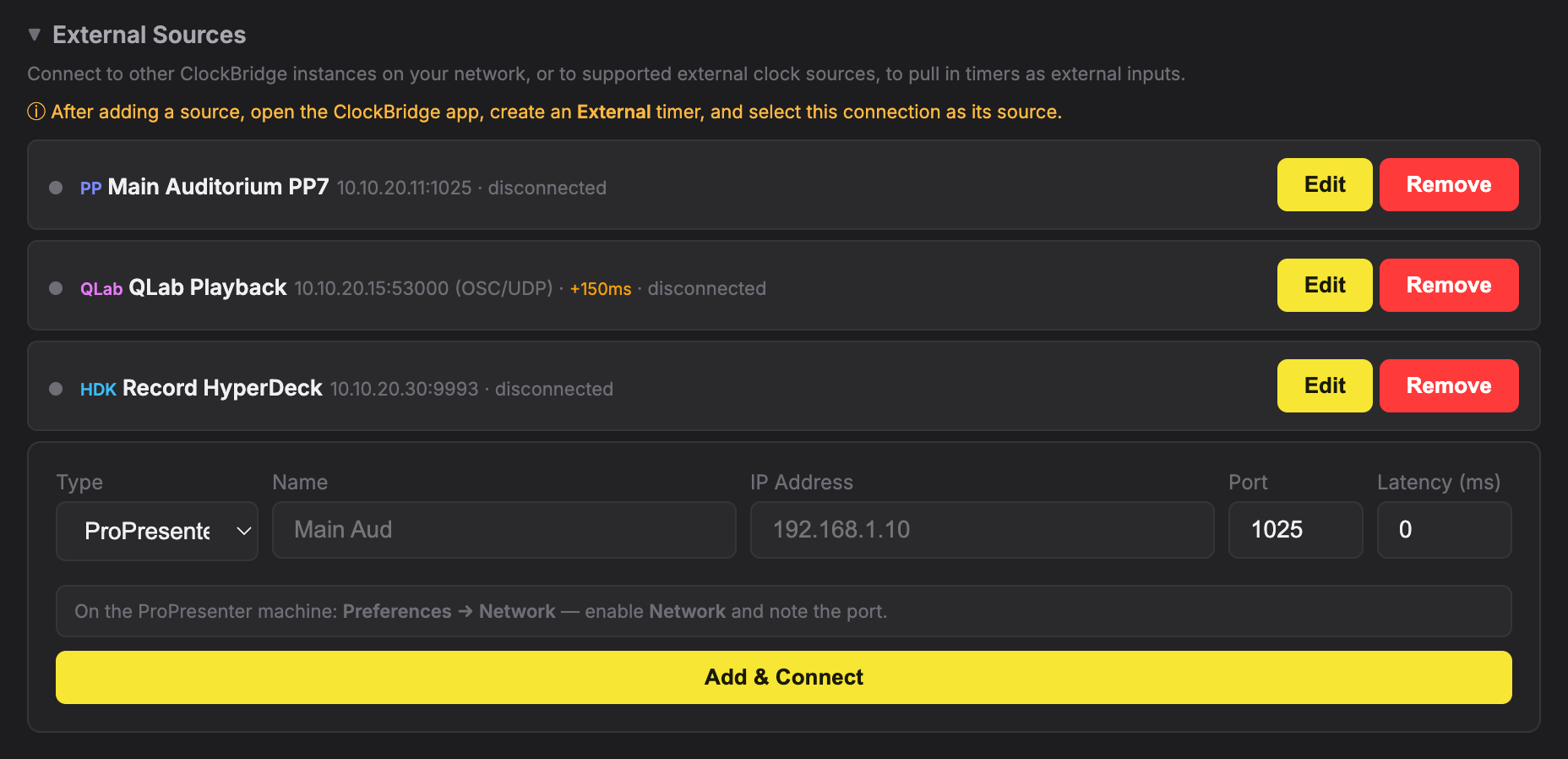
Each saved connection appears in a list above the Add form, showing:
- A status dot — green when connected, red on error, gray when disconnected.
- A colored type badge next to the name. ClockBridge, QLab, HyperDeck, and FreeShow each get their own badge (CB, QLab, HDK, FS). ProPresenter also gets a badge reading "PP" — but so does everything else that isn't one of those four: Resolume, ProVideoPlayer (PVP), and PCO Live connections are all badged "PP" too, even though they aren't ProPresenter. If you're scanning the list for a Resolume or PCO Live connection, don't be thrown by the "PP" tag next to it.
- A detail line:
host:portwith(OSC/UDP)appended for QLab, followed by the current status. If a non-zero Latency offset is set, it's shown here too (e.g.+150ms).
Edit expands the row inline to Name, IP Address (where applicable), Port, and Latency fields — the connection type can't be changed after creation; remove the connection and add a new one to switch types. The Latency field in this edit view carries a note on how precisely that source type reports time: ProPresenter, QLab, HyperDeck, and PCO Live all report in whole seconds (steps of 1000ms), while ClockBridge, Resolume, PVP, and FreeShow report sub-second, full-precision values. This is useful context when deciding how much Latency offset a source actually needs. Remove deletes the connection.
Next: attaching a source to a timer
Defining a connection here doesn't put anything on screen by itself. As the section itself warns:
After adding a source, open the ClockBridge app, create an External timer, and select this connection as its source.
That step — creating an External timer and choosing which of these connections (and, depending on the source type, which of its layers, cues, or regions) drives it — is covered in Chapter 4 — The Control Panel. This chapter only covers getting the connection itself configured and connected.