Appearance
Control Methods
Let other show-control systems drive ClockBridge — OSC, RossTalk, the REST/WS API, and the Bitfocus Companion module.
Chapter 3 covered ClockBridge reading other systems' timers and clocks in. This chapter is the opposite direction: other systems sending ClockBridge commands — start, stop, display, adjust, load a preset. Nothing here reads anything from another system; every control method below only pushes commands at ClockBridge.
Addressing timers by API ID
Every timer has a numeric API ID (1–255) — the same number shown on that timer's card in the control panel (see the API ID batch editor in Chapter 4 — The Control Panel, under Settings). OSC addresses, RossTalk commands, and Companion's action/feedback options all take this number. Assign or check it once from the control panel, and every method below refers to the timer the same way.
OSC Input
Configured on the /setup page, under the OSC Input section.
- Enable OSC — checkbox. Off by default.
- Port — UDP port to listen on. Default
9000.
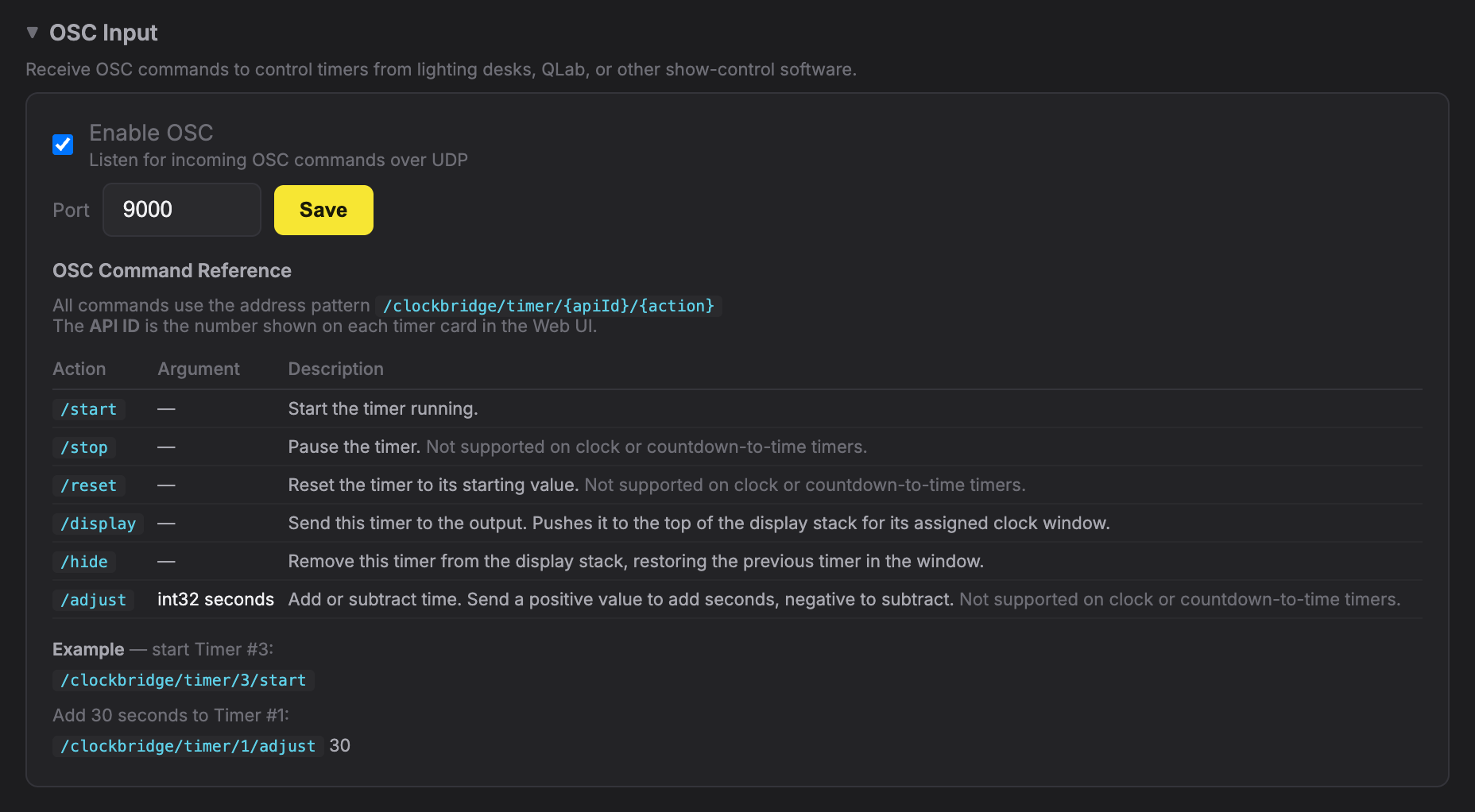
All commands use the address pattern:
/clockbridge/timer/{apiId}/{action}| Action | Argument | Description |
|---|---|---|
/start | — | Start the timer running. |
/stop | — | Pause the timer. Not supported on clock or countdown-to-time timers. |
/reset | — | Reset the timer to its starting value. Not supported on clock or countdown-to-time timers. |
/display | — | Send this timer to the output. Pushes it to the top of the display stack for its assigned Clock Window. |
/hide | — | Remove this timer from the display stack, restoring the previous timer in that window. |
/adjust | int32 seconds | Add or subtract time. Positive adds seconds, negative subtracts. Not supported on clock or countdown-to-time timers. |
The "not supported" notes above match the wording on the
/setuppage. In practice,/stop,/reset, and/adjustare ignored by countdown-to-time timers and count-up-from-time timers (both follow the real clock, so there's nothing to pause, reset, or adjust), and have no effect on clock timers.
Examples — start timer with API ID 3:
/clockbridge/timer/3/startAdd 30 seconds to timer with API ID 1:
/clockbridge/timer/1/adjust 30OSC is UDP, one-way in (ClockBridge does not send OSC replies) — every state change it causes still shows up over the WebSocket API and in the control panel in real time.
RossTalk Input
Configured on the /setup page, under the RossTalk Input section. Useful for ProPresenter, Ross Video switchers, or any other RossTalk-capable hardware.
- Enable RossTalk — checkbox. Off by default.
- Port — TCP port to listen on. Default
7788.
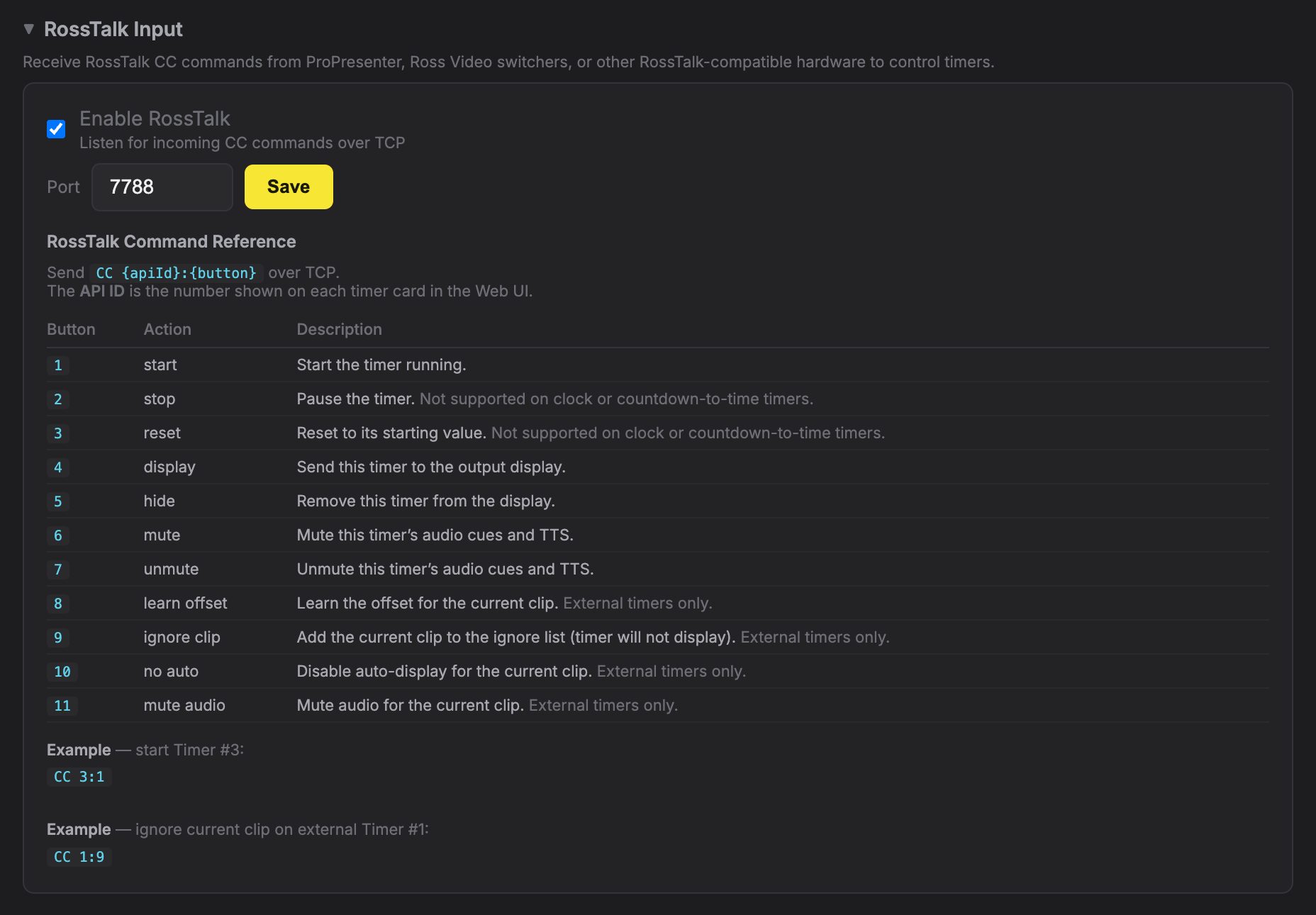
RossTalk is inbound-only: ClockBridge listens on a plain TCP socket for newline-terminated CC command lines and never sends anything back on that connection. The command format is:
CC {apiId}:{button}| Button | Action | Description |
|---|---|---|
1 | start | Start the timer running. |
2 | stop | Pause the timer. Not supported on clock or countdown-to-time timers. |
3 | reset | Reset to its starting value. Not supported on clock or countdown-to-time timers. |
4 | display | Send this timer to the output display. |
5 | hide | Remove this timer from the display. |
6 | mute | Mute this timer's audio cues and TTS. |
7 | unmute | Unmute this timer's audio cues and TTS. |
8 | learn offset | Learn the offset for the current clip. External timers only. |
9 | ignore clip | Add the current clip to the ignore list (timer will not auto-display it). External timers only. |
10 | no auto | Disable auto-display for the current clip. External timers only. |
11 | mute audio | Mute audio for the current clip. External timers only. |
The same note as OSC applies to buttons 2 and 3: they're ignored by countdown-to-time and count-up-from-time timers, and have no effect on clock timers.
Examples — start timer with API ID 3:
CC 3:1Ignore the current clip on external timer with API ID 1:
CC 1:9REST/WS API
ClockBridge exposes a REST API and a WebSocket event feed on the same port as the control panel itself:
- Base URL:
http://{host}:4500 - WebSocket:
ws://{host}:4500
Connecting over WebSocket gets you an immediate { "event": "state", "data": { … } } snapshot of everything on the server, followed by incremental events (timer:created, timer:updated, timer:deleted, clock:updated, and more) any time state changes — from any control method, not just the REST API. The REST side covers the same actions available elsewhere in this chapter, notably:
| Method | Path | Description |
|---|---|---|
POST | /api/timers/:id/start | Start a timer |
POST | /api/timers/:id/stop | Stop a timer |
POST | /api/timers/:id/reset | Reset a timer |
POST | /api/timers/:id/display | Push timer to display stack |
POST | /api/timers/:id/hide | Remove timer from display stack |
POST | /api/timers/:id/adjust | Add/subtract seconds — body { "seconds": -60 } |
Unlike OSC and RossTalk, these routes take the timer's long unique id in the path, not its API ID — look it up first via GET /api/state, whose timers[] list carries both id and apiId for every timer.
No authentication — a network-segmentation consideration, not a footnote
There is no authentication on the REST or WebSocket API. Any device that can reach the server on this port can create, delete, start, stop, or retarget any timer, load any preset, or change server configuration — with no login, no token, and no audit trail of who did it. This is a deliberate simplicity trade-off for a LAN show-control tool, but it means the API's actual security boundary is your network, not the application:
- Put ClockBridge on the same segment as your other show-control gear (the same segment OSC/RossTalk/Companion traffic already lives on), not on a segment reachable from guest Wi-Fi, a general office VLAN, or the open internet.
- Anyone who can reach port
4500can do everything a Companion button can do — treat that port with the same access discipline you'd give a lighting console's Art-Net port. - There's no separate "read-only" mode: a client that can read
/api/statecan also write to every other endpoint.
Companion module
The Bitfocus Companion module (companion-module-clockbridge) drives ClockBridge from a Stream Deck, a touch panel, or Companion's own web buttons. It talks to the same REST/WebSocket API described above, so no extra port or protocol needs to be enabled on the /setup page.
Installing the module
The ClockBridge module comes as a single package file, named like clockbridge-0.4.21.tgz.
Download: coming soon.
To load it, open Companion's configuration page in your web browser, go to Modules, click Import module package, and choose that file:
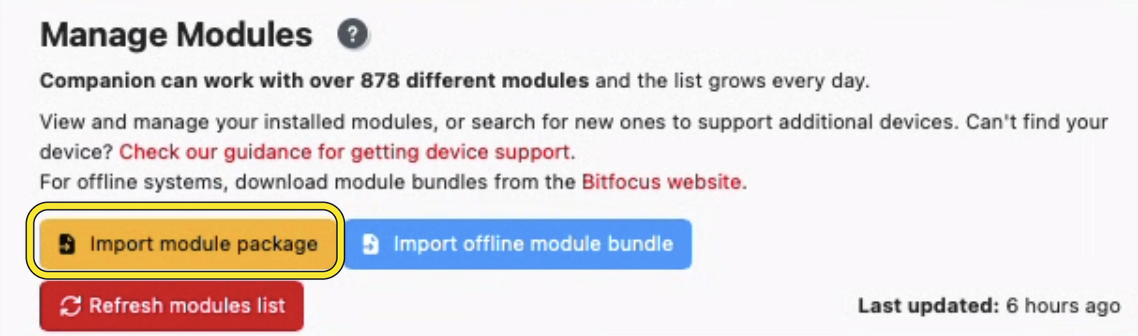
Once it's imported, ClockBridge appears in Companion's list of connections you can add.
Connection
Add the ClockBridge module to a Companion connection and set:
- ClockBridge Host — hostname or IP of the ClockBridge server.
- Port — default
4500, matching the REST/WS API port above.
The module connects to that host and port and keeps a live copy of the server's timers, Clock Windows, connections, and presets, so every button responds instantly instead of asking the server on each press.
Actions
Companion action options accept an API ID — for most timer-control actions, a comma-separated list (1,2,3) to fire the same action across several timers with one button.
Timer control
| Action | Notes |
|---|---|
| Toggle Timer (Start / Pause) | Also sets what happens to the display on start and on pause (leave as-is / display / hide). |
| Start Timer | |
| Stop Timer | Guarded against countdown_to_time/countup_from_time (server would 400). |
| Pause Timer | |
| Reset Timer | Guarded against countdown_to_time/countup_from_time. |
| Display Timer | |
| Hide Timer | |
| Delete Timer | |
| Mute Timer (audio cues + TTS) | |
| Unmute Timer | |
| Toggle Timer Mute | |
| Adjust Time | Seconds field, positive or negative. Guarded against time-based modes. |
External-clip control (ProPresenter, ProVideoPlayer, QLab, Resolume, FreeShow sources)
| Action | Notes |
|---|---|
| Learn Video Offset | Captures the current clip's remaining time as a stored offset. Requires an External timer with a video/clip source. |
| Ignore Current Clip | Adds the active clip to that source's ignore list. |
| Unignore Current Clip | |
| Toggle Ignore Current Clip | |
| Ignore Current Presentation | Same, at the whole-presentation level (ProPresenter). |
| Unignore Current Presentation | |
| Toggle Ignore Current Presentation | |
| Enable Auto-Display for Current Clip | Mode-aware: writes to the allow-list or deny-list depending on the timer's Auto-Roll setting, so the button does the right thing either way. |
| Disable Auto-Display for Current Clip | |
| Toggle Auto-Display for Current Clip | |
| Enable Auto-Display for Current Presentation | |
| Disable Auto-Display for Current Presentation | |
| Toggle Auto-Display for Current Presentation |
Show-building
| Action | Notes |
|---|---|
| Create Timer | Full timer-creation form (mode, duration/target time, thresholds, colors, label, target region, order, auto-start/auto-show). If a timer already occupies that API ID, it's deleted and recreated. |
| Load Preset | Loads a full Preset (Chapter 4) — replaces the entire show. |
| Apply Clock Preset | Stamps a saved Clock Preset (Chapter 4) onto one or more API IDs, with an optional display/hide action afterward. |
| Send Message | Creates or updates a message-mode timer with text, color, target region, and auto-hide, then displays it. |
For external or complex timers, use Apply Clock Preset rather than Create Timer. Create Timer's form covers the common cases, but for anything with more configuration — an External timer's source wiring, custom thresholds, label settings — build it once in the control panel, save it as a Clock Preset, and use Apply Clock Preset to drop that exact configuration onto any API ID from a button, instead of re-entering it through Create Timer's options each time.
Feedbacks
| Feedback | Fires when |
|---|---|
| Timer is Running | |
| Timer is Paused | |
| Timer is Stopped | |
| Timer is Overrunning | |
| Timer is Displayed | |
| Timer Audio Muted | |
| Timer at Warning | Active (running/overrun) and past the warning threshold but not yet critical. |
| Timer at Critical | Active and past the critical threshold. |
| Connected to ClockBridge | The module's WebSocket connection is up. |
| Timer Current Clip Has Video Offset | The currently active source clip has a saved video offset. |
| Current Clip is Ignored | The active PP7 clip is on the ignore list for this timer's source. |
| Current Clip Will Auto-Display | The active PP7 clip will auto-display given the timer's current Auto-Roll mode. |
| Current Presentation is Ignored | The active PP7 presentation is on the ignore list for this timer's source. |
| Current Presentation Will Auto-Display | The active PP7 presentation will auto-display given the timer's current Auto-Roll mode. |
All feedbacks update instantly from the module's### Updating the module
To update, import the newer .tgz file the same way: Modules → Import module package.
Companion after a module change.
Variable reference
The Companion module also exposes a large set of variables — per-timer time/state/label values, per-region "what's currently displayed" values, and a few connection-level globals — for use in button text and conditional styling. That table is long enough to live on its own: see the Companion Variable Reference.
Next steps
- For the timer-list and preset concepts referenced throughout this chapter (API ID editor, Presets, Clock Presets), see Chapter 4 — The Control Panel.
- The full Companion variable list is in the Companion Variable Reference.
- For handing a Companion-driven setup to an operator, see Chapter 6 — User Preferences & Operator Handoff.