Appearance
The Control Panel
As Chapter 1 covered, there's only one control panel UI in ClockBridge, reached either of two ways: the dedicated User app window, or a plain browser pointed at the server's address (the Server app's own tray-menu "Open ClockBridge" shortcut just opens that same browser view). Nothing in this chapter is specific to either one; whatever you read here looks and behaves identically in both.
The control panel has three working parts: a top bar for creating timers and managing presets, the timer list itself where day-to-day running happens, and a Settings panel for control-panel-wide preferences. This chapter covers all three, and finishes the External Sources workflow that Chapter 3 started.
The top bar
Across the top of the control panel: a connection indicator (green dot = connected to the server, red = disconnected), then a row of controls, right-aligned:
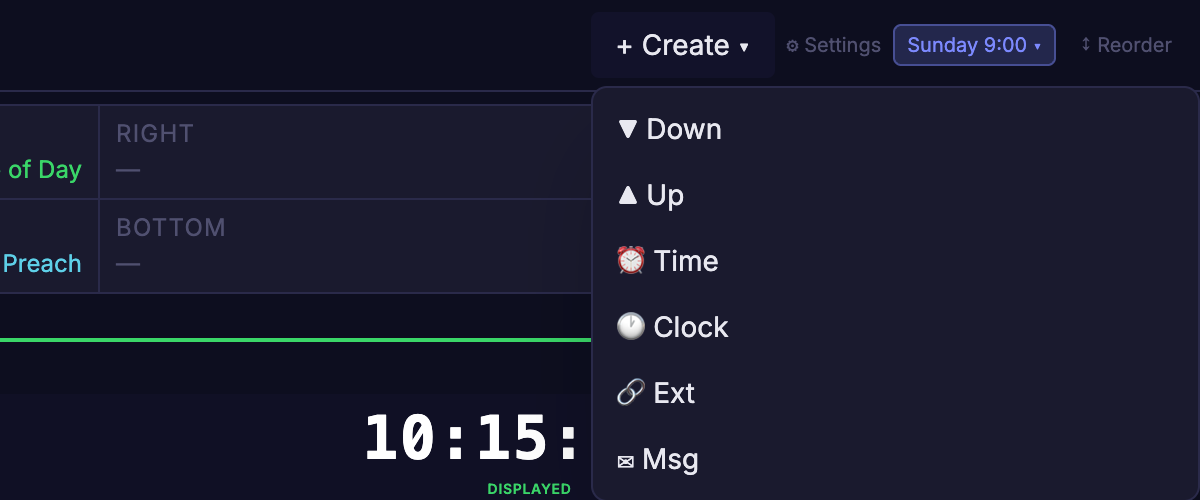
- + Create ▾ — opens the timer-creation menu. Only shown when the Create Dropdown feature is turned on; by default the create buttons sit in a grid under the top bar instead (see Creating a timer, below).
- 📅 Schedules — opens the schedule drawer for time-of-day automated timer/preset triggers. Only shown when that feature is enabled on
/setup; not covered further in this chapter. - 🖥 Server — User app only. Opens the server connection settings (which server this app talks to) — not to be confused with the
/setupconfiguration page covered in Chapter 2, or the ⚙ Settings panel described later in this chapter. - ⚙ Settings — opens the control-panel-wide Settings panel, covered later in this chapter.
- Presets ▾ — opens the preset menu; shows the active preset's name when one is loaded. Covered in the Presets section below.
- ↕ Reorder — toggles reorder mode on the timer list (see Managing timers, below).
Creating a timer
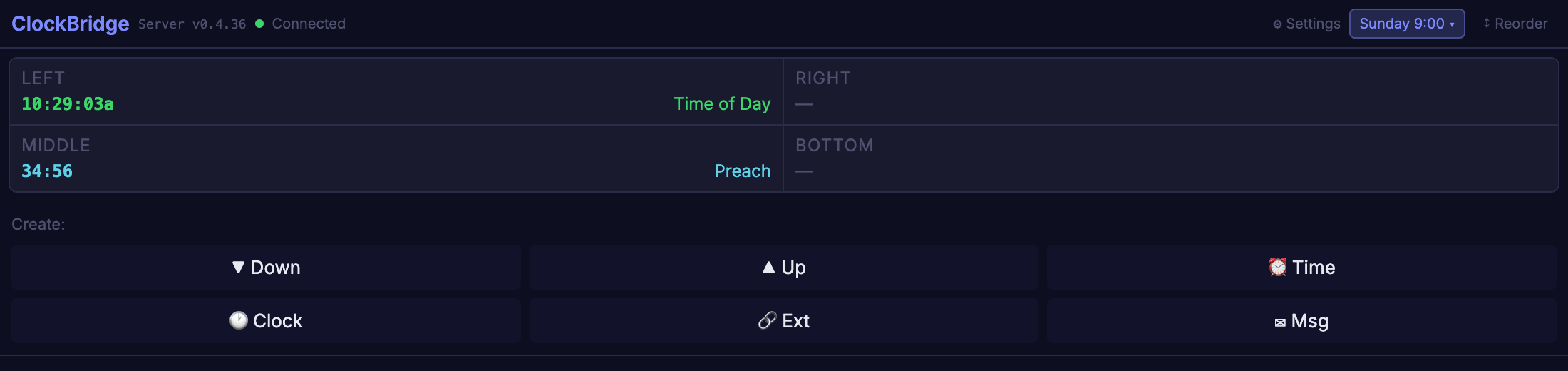
The create buttons sit in a fixed 3-column grid labelled Create:, just under the top bar and the output preview:
If you'd rather reclaim that space, turn on Create Dropdown under /setup → UI Features. The grid is then replaced by a + Create ▾ button in the top bar that opens the same buttons as a menu — same actions, just tucked away until you need them:
- ▼ Down — a manual countdown timer, defaulting to 5:00, direction Down.
- ▲ Up — a manual count-up (stopwatch) timer, starting at 0:00, direction Up.
- ⏰ Time — a countdown-to-a-clock-time timer, named "Countdown", defaulting to a 10:00 AM target. Inside the timer's own settings, this can be flipped between counting down to that time and counting up from it. Because it follows the real clock, it can't be paused, reset or adjusted. Examples:
- Counting down to a start time: set the target to the time the show goes live, say 10:00 AM. At 9:45 AM the timer reads 15:00 and reaches 0:00 exactly at 10:00, so the presenter sees how long until they're on.
- Counting up from a start time: set the target to when the service began, say 10:00 AM. At 10:42 AM the timer reads 42:00, showing how long the service has been running without anyone having to start a stopwatch.
- A fixed doors-open or curfew time, such as a 5:30 PM load-out, works the same way: leave it displayed all day and it always shows the time left to that mark.
- A countdown that turns into an elapsed timer — one of the most useful setups. Set the timer to count down to the start time, then open its gear panel and set At Zero to Overrun, leaving Red on overrun off. (Overrun is available when the Overrun feature is on in
/setup; see Chapter 6a.) Before 10:00 AM the timer counts down to the start. At 10:00 it doesn't stop at 0:00; it keeps going and shows how long the service has been running, in the same color, with no red warning to distract the presenter. One timer, one Clock Window, and no one has to press anything at the top of the hour.
- 🕐 Clock — a live clock, named "Clock". A Clock has no Start button, since it always runs. If you want it back on screen after every server restart, tick Auto display on server launch in its gear panel.
- 🔗 Ext — an External timer; see the dedicated section below. Only shown if External Sources is enabled on
/setup. - ✉ Msg — a static message timer, named "Message", for pushing arbitrary text to a Clock Window instead of a time value. Only shown if Messages is enabled.
- ◈ SMPTE — a timer driven by incoming SMPTE/LTC timecode, named "SMPTE", styled in amber/warning color to set it apart from the rest of the list at a glance. Only shown if SMPTE is enabled.
Every new timer lands at the bottom of the list. If a Default Clock Window has been set for that timer type (in the ⚙ Settings panel, described below), the new timer is auto-assigned to that Clock Window; otherwise it's created unassigned and idle until you assign one.
Creating an External timer — completing the Chapter 3 workflow
Chapter 3 walked through adding a connection under /setup → External Sources — a ProPresenter instance, another ClockBridge server, QLab, and so on. That step only defines where a value can come from; it doesn't put anything on a clock. Clicking 🔗 Ext here is the second half.
A brand-new External timer has no source selected yet. Because of that, the control panel automatically expands that timer's inline settings (the gear icon, described below) the moment it's created — you land straight in source selection instead of having to go find it. If a source is ever cleared afterward (for example, the connection it pointed at gets removed on /setup), the settings panel reopens automatically the same way, since an External timer with no source can't display anything.
Inside the settings panel:
- Source — a dropdown listing every connection configured in Chapter 3, labeled with its Chapter-3 name and a short type badge: CB, QLab, HDK, RLM (Resolume), and PVP each get their own badge here; only ProPresenter, FreeShow, and PCO Live share a "PP" badge. This is a different (and more specific) badge scheme than the
/setupconnections list in Chapter 3, where Resolume, PVP, and PCO Live all show "PP" — here, most of those get their own distinct badge instead. - Once a source is picked, a second field appears specific to that source's type — this is the "which layer, cue, or region" half of the Chapter 3 warning:
- ClockBridge source → Remote Source, a dropdown of the remote server's Regions and Shared timers (only timers marked Shared on the remote server appear here, matching Chapter 3's requirement).
- ProPresenter source → Input, a dropdown of that instance's running timers, plus a "🎬 Video Countdown" option to follow video/media countdown instead of a named timer.
- Resolume / ProVideoPlayer source → independent Layer and Clip name checkboxes — enable one or both as filters on which content this timer should follow.
- QLab source → Cue Number, typed in exactly as it appears in QLab.
A card summary on the timer itself (outside the settings panel) shows the connected source's name and live status dot once one is selected, so you can confirm at a glance that Chapter 3's connection is actually reachable.
Managing timers in the list
Every timer created above appears as a card in the main list, stacked top to bottom in creation order (or your custom order — see Reorder, below). Each card has a consistent layout:
- Name — click the name to edit it inline.
- Type badge — a small tag (▼ DOWN, ▲ UP, ⏰ TIME ▼/▲, 🕐 CLOCK, ◈ SMPTE, 🔗 EXT, ✉ MSG) showing the timer's current mode.
- ⚙ gear icon — expands that timer's own inline settings panel (duration/target details, thresholds, color behavior, and — for External timers — the source selection just described); see The gear panel, below. This is a per-timer gear, separate from the top bar's ⚙ Settings button.
- Mute — only shown on timers that have audio cues or text-to-speech enabled; temporarily silences that timer's audio without changing its config.
- ✕ delete — asks for confirmation (the button becomes Delete / Cancel) before removing the timer.
Below that, the card splits into a config/controls column and a time/display column:
- Manual (Down/Up) timers show minute:second duration fields, Start/Pause/Reset buttons, and an Adjust control (a MM:SS field with +Add and −Rem buttons) for nudging a running timer's time up or down on the fly.
- Time-mode timers show hour/minute/AM-PM-24H fields instead of a plain duration, plus Stop/Reset.
- Message timers show a text box (with live line-wrapping once a Clock Window is assigned) instead of a time field, and no Start/Stop controls — a message is either displayed or not.
- Clock and External timers have no Start/Stop/Reset controls at all — they run continuously (Clock) or follow their source (External). SMPTE timers likewise have no Start/Stop (they follow incoming timecode), but do get a Reset button.
- Every timer type gets a DISPLAY button on the right, which toggles between DISPLAY, DISPLAYED (live on a Clock Window), and QUEUED (waiting behind another timer already showing on the same Clock Window).
Adding or removing time on a running timer
Plans change mid-show — the speaker is running long, or a segment got cut. You don't need to stop and restart: a Down or Up timer lets you nudge its time while it's running, from the row of controls at the bottom-left of its card.
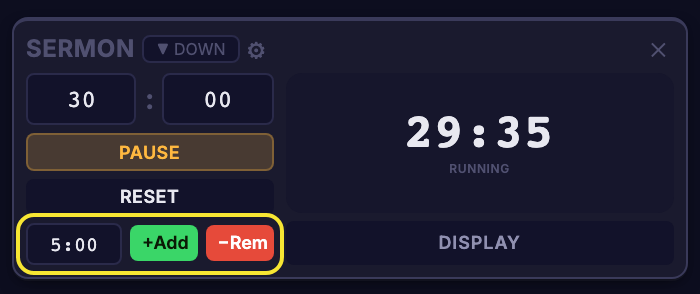
- Type an amount in the field, as minutes:seconds. It starts at
5:00. Typing a single number, such as2, means that many minutes;0:30is thirty seconds. - Click +Add to add that much time, or −Rem to take it away. The change lands immediately and you can click again to stack adjustments.
What that does depends on the timer:
- Down timer — +Add gives the speaker more time (a 29:35 timer plus 5:00 becomes 34:35); −Rem pulls the end closer. Removing more than what's left stops at 0:00 rather than going negative.
- Up timer — shifts the elapsed time forward or back the same way.
A few things to know:
- The Adjust row only appears while the timer is running. Pause or reset and it disappears; start the timer and it's back.
- It isn't offered on Time, Clock, External or Message timers. Those follow a real clock or an outside source, so there's nothing to adjust. (A time-based timer ignores adjust commands from OSC, RossTalk and Companion too.)
- It can be triggered from outside the control panel: the OSC
/adjustmessage, the RESTadjustcall and Companion's Adjust Time action all take a number of seconds, positive to add and negative to remove (Chapter 5). A Stream Deck button labelled +1:00 next to the speaker's timer is a common use.
The gear panel
The ⚙ gear on each card opens that timer's own settings, right inside the card. Here is a Down timer with the gear open and every feature switched on:
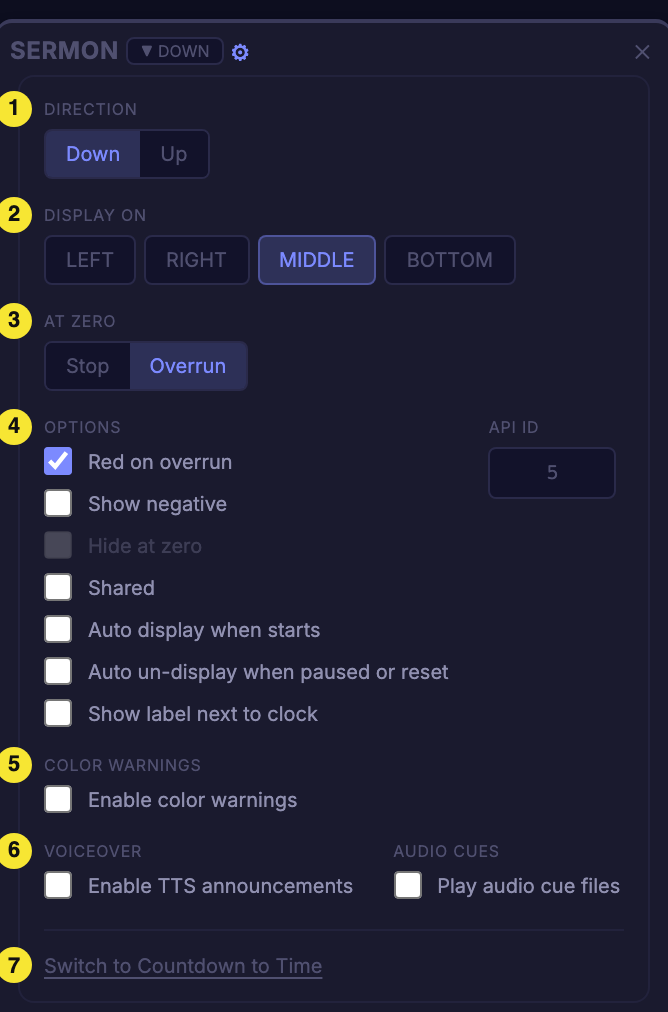
- Direction — Down counts toward zero; Up counts up from zero. (Only on Down/Up timers.)
- Display On — which Clock Windows this timer appears on. Click one or more; the highlighted ones are active. The window names come from
/setup(Chapter 2). - At Zero — what happens when the countdown reaches 0:00: Stop holds at zero, Overrun keeps counting up past zero. Only offered when the Overrun feature is on.
- Options — the tick boxes: Red on overrun, Flash red on overrun (only when the system has switched flashing on in
/setup; it reads Flash on overrun if the system chose the off look), Show negative, Show progress bar (Down and Time timers, only when the system has switched it on in/setup), Hide at zero, Shared, Auto display when starts, Auto un-display when paused or reset and Show label next to clock. A Clock timer also has Show AM/PM, 24-hour and Auto display on server launch, which puts the clock back on its Clock Windows every time the server starts. API ID at the right is the number that OSC, RossTalk and Companion use to address this timer. It's read-only here; change it in the top bar's ⚙ Settings panel. Hide at zero is greyed out while At Zero is set to Overrun. - Color Warnings — changes the clock's color as it nears zero (see Chapter 6a).
- Voiceover and Audio Cues — spoken announcements and your own audio files at time milestones.
- Switch to Countdown to Time — converts the timer to a Time timer (count down to a time of day). On a Time timer the same link reads Switch to Manual. It asks you to confirm, because the timer is stopped, taken off the display and has its Clock Window and time cleared.
Which of areas 3 to 6 you see depends on which features are switched on in /setup, and on the timer type — Chapter 6a shows each one with and without its feature, and what it does for the operator. External timers also get their source controls at the top (see above).
Reordering
Click ↕ Reorder in the top bar to reveal a drag handle on the left edge of every card. Press and drag a handle to move that timer to a new position in the list; release to drop it. This only changes list order for your own convenience — it has no effect on which Clock Window a timer is assigned to or which API ID controls it.
The Settings panel
The top bar's ⚙ Settings button opens a panel of control-panel-wide preferences, organized into collapsible sections:
- Appearance — theme picker, plus a "black preview background" toggle that matches the card list's preview area to actual clock output.
- Default Clock Window Per Type — one dropdown per timer type (Down, Up, Time, Clock, External, Message) picking which Clock Window a newly created timer of that type is auto-assigned to. A type the system has switched off (Messages or External Sources on the Server page) has no dropdown, because timers of that type can't be created. This is what drives the auto-assignment mentioned earlier in this chapter.
- API ID — a batch editor listing every timer's name next to its numeric API ID, with an UPDATE button. This is the same API ID that Control Methods (Chapter 5) and Clock Presets (below) target — duplicate or non-positive values are flagged in red and block the update.
- Planning Center — only shown once PCO is enabled — lets you pick a service type and plan and import its scheduled times as timers via Import Times.
- Software Update — User app only — a manual Update from Server trigger and the current app/server version numbers, alongside the update process covered in Chapter 7.
- A link at the bottom, Open Server Setup Page, jumps to
/setup(Chapter 2) directly.
Presets, Clock Presets, and Server Config Presets
ClockBridge uses the word "preset" for three different things, and only one of them lives in the control panel described in this chapter:
| Scope | Saved/loaded from | Covered here? | |
|---|---|---|---|
| Preset | The entire show — every timer, every Clock Window, every Clock Window's region config | Presets ▾ menu, top bar | Yes |
| Clock Preset | One timer's full configuration, reusable as a template and dropped onto any API ID | Presets ▾ menu, or a timer's own gear icon | Yes |
| Server Config Preset | The whole server's settings — outputs, integrations, everything on /setup | /setup page | No — see Chapter 2 |
Preset
A Preset is a full snapshot of the current show: every timer and every Clock Window, as they exist at the moment you save. Managed from the Presets ▾ menu in the top bar:
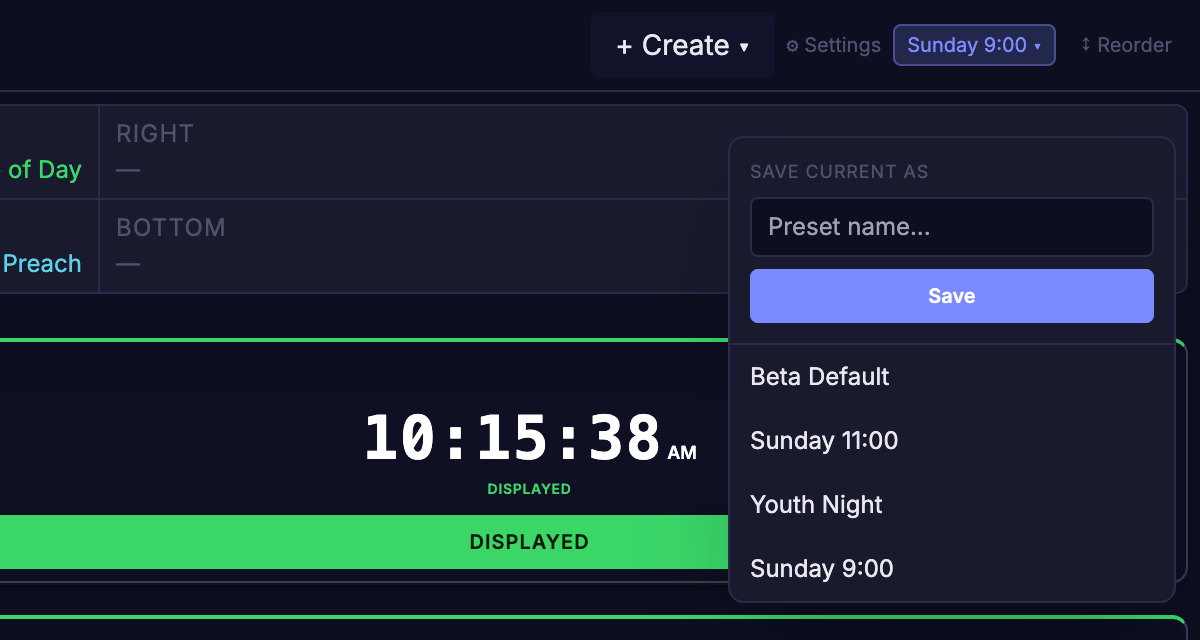
- Save Current As — type a name and click Save to snapshot everything currently on screen. If that name is already used, it asks whether to overwrite that preset instead of making a second one with the same name.
- The list below it shows every saved Preset by name. Clicking a name loads it — replacing the entire current show (all timers, all Clock Windows) with what was saved. The button itself shows the active preset's name once one is loaded (or "Presets" if none is active).
- Hovering a saved Preset reveals 💾 (overwrite it with the current state) and ✕ (delete) actions. Both ask first: 💾 asks "Are you sure you want to overwrite the preset name with the current state?" with Overwrite and Cancel, and ✕ shows an inline Delete/Cancel confirmation.
Loading a Preset replaces the whole show — use it for cases like loading a full timer set for the day or switching from rehearsal timers to service timers, not for reusing a single timer's setup elsewhere.
Clock Preset
A Clock Preset is a template for a single timer's configuration — not the whole show — that can be dropped onto any timer slot by its API ID (the same numeric ID used in the Settings panel's API ID editor and by Control Methods in Chapter 5).
Clock Presets show up in two places:
- Presets ▾ menu, top bar — a "Clock Presets" section lists every saved Clock Preset. Clicking Load asks for an API ID to apply it to, shows which existing timer (if any) occupies that slot and warns that it will be replaced, then Confirm applies it. ✕ deletes a Clock Preset from here (with the same Delete/Cancel confirmation as regular Presets).
- A timer's own gear icon — currently, only External timers expose Clock Preset controls directly in their settings panel: Save as Preset captures that timer's exact configuration (its source, its display options, everything except the timer's identity and live state) under a name, and Apply (with a second-click Confirm? step) drops a previously-saved Clock Preset straight onto that same timer, replacing its config in place.
Example: an API ID that's always the lobby overflow feed pointed at the main auditorium's ClockBridge. Save that timer's config once as a Clock Preset, and re-apply it to any API ID (or the same External timer) any time that wiring needs to be recreated, without touching the rest of the show.
Server Config Preset
A Server Config Preset is unrelated to either of the above: it's a snapshot of the server's own settings — Clock Window layouts, output configuration, integrations, everything on /setup — saved and loaded from the /setup page itself, not from this control panel. It has nothing to do with timers or shows.
This chapter doesn't cover Server Config Presets further; see Server Config Presets in Chapter 2 — Server Setup.
Next steps
- Wire up start/stop and cue automation from other systems in Chapter 5 — Control Methods.
- If you're running Companion, the full variable reference is in the Companion Variable Reference.
- For handing this panel to an operator who isn't the one who configured it, see Chapter 6 — User Preferences & Operator Handoff.