Appearance
Server Setup
The /setup page is where a ClockBridge server is configured: where each timer can display, and which signal paths carry that display out to the rest of the room. It's served by the Server app itself, so it's reachable two ways:
- From the Server app's tray menu, choose Setup.
- Point a browser at
http://<server-ip>:<port>/setupdirectly — the same page a tray click opens, no install required on the machine doing the configuring.
The page is organized into collapsible sections — Clock Windows, Layout Preview, Outputs, External Sources, UI Features, Voiceover/TTS, Audio Cue Files, SMPTE/LTC, Planning Center, NTP Time Source, Server Config Presets, Danger Zone, and more. Clock Windows and Outputs are open by default when the page loads; Layout Preview starts collapsed. This edition of the guide covers Clock Windows, Layout Preview, Outputs (this chapter), and Server Config Presets (below) — the sections a fresh install needs before anything can be displayed at all. Voiceover/TTS and Audio Cue Files are covered in Chapter 6a — Features in the Control Panel. SMPTE/LTC setup, Planning Center enablement, NTP Time Source, and Danger Zone are not yet documented in this edition. (Scheduled Timers is a checkbox inside UI Features, not its own section — see Chapter 6.)
Three things that all get called "output"
Before touching either section, it's worth being precise about a word that gets used loosely but means three distinct things inside ClockBridge:
- Clock Window — a positioned region that a timer renders into: an x/y position, a width and height, a font, a color, an alignment. A Clock Window doesn't go anywhere on its own — it's a slot on the canvas that timers get assigned to from the control panel.
- Output — a signal path that carries the rendered canvas (all its Clock Windows, composited together) out of the server: NDI, BMD DeckLink, or Web Output. Outputs don't know or care about individual Clock Windows; they each transmit the whole 1920×1080 frame.
/output— the actual page/canvas that gets displayed: the browser page (or the frame BMD/NDI transmit) that renders all your Clock Windows in position. It's what a Web Output URL points at — mentioned here only so it isn't confused with the other two.
In short: you configure Clock Windows to say what displays and where; you enable Outputs to say how the composited result leaves the server; /output is what's actually on screen when both are working. This chapter documents the first two.
Clock Windows
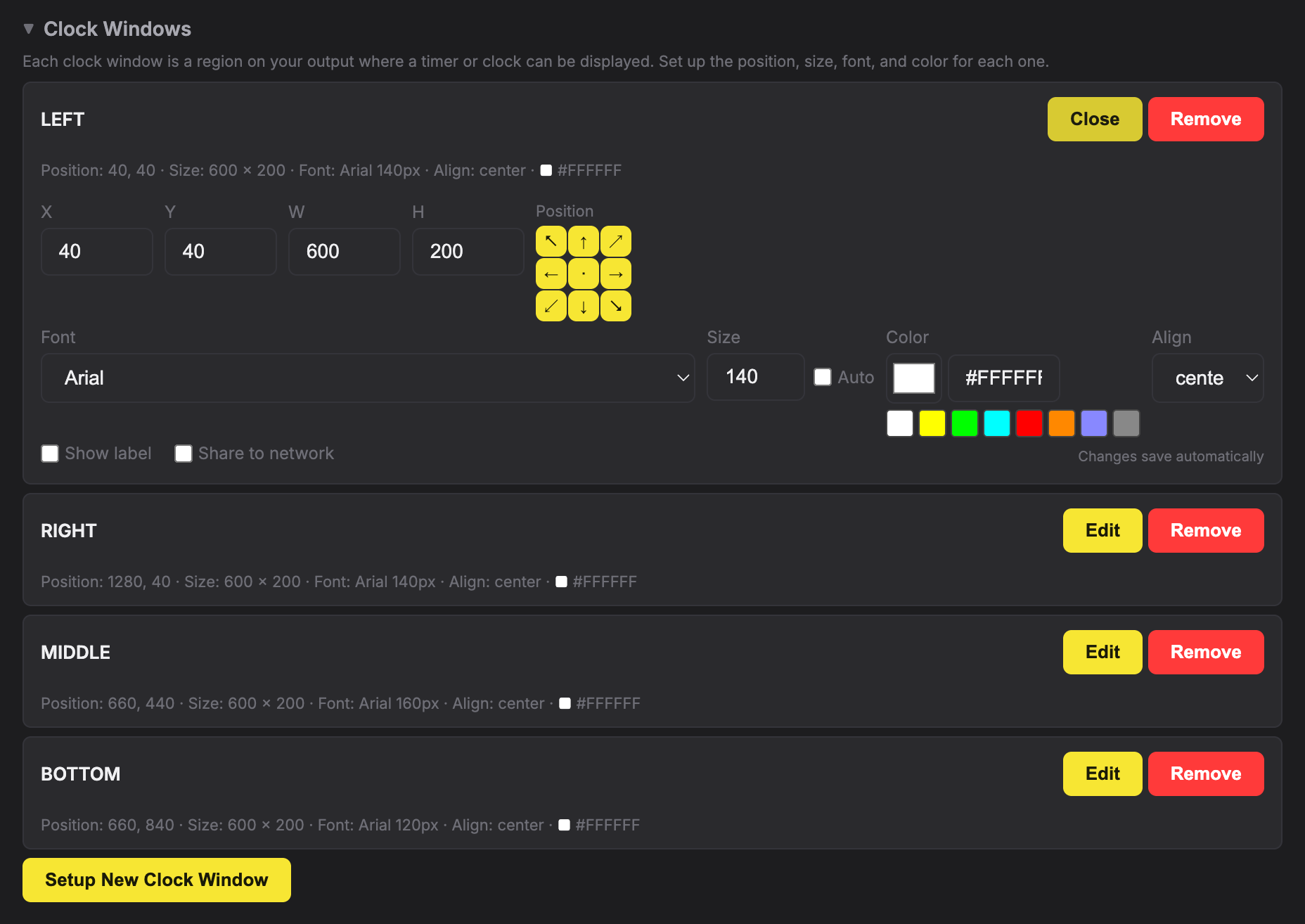
Each clock window is a region on your output where a timer or clock can be displayed. Set up the position, size, font, and color for each one.
Each existing Clock Window is listed with a summary line — position, size, font and size, alignment, its color swatch, its background color if it has one, and whether it currently has Show label and/or Share to network turned on. Edit and Remove buttons sit next to each one.
Clicking Setup New Clock Window opens a form with the following fields:
- Region Name — a free-text name (the placeholder example is
LEFT). - X / Y / W / H — numeric position and size in output pixels, against the fixed 1920×1080 canvas.
- Position — a 3×3 grid of preset buttons (the eight compass directions plus center) that snap X/Y to that corner, edge, or the middle of the canvas, sized to the W/H already entered.
- Font — a dropdown of the font families installed on the server machine.
- Size — the font size in pixels, with an Auto checkbox next to it. Checking Auto disables the manual size field and scales the text to the region's height automatically instead of using a fixed pixel value.
- Color — a color picker plus a hex text field kept in sync with each other, backed by eight one-click swatches (white, yellow, green, cyan, red, orange, blue, gray).
- Align —
left,center, orright; center is selected by default. - Background — a checkbox with its own color picker and hex field. When it's ticked, the whole Clock Window is filled with that color behind the time, so a blue box behind white digits, for example. It's off by default, and the time itself keeps its normal colors, including red on overrun. The fill only appears while a timer is displayed in the window; an empty window stays clear. Background is set per Clock Window, so every timer shown in that window gets it.
- Progress bar — a checkbox with its own settings, in both this form and the editor for an existing window. When it's ticked, timers shown in this window can draw a progress bar that fills from left to right and is full at the end (see Chapter 6a). Top or Bottom chooses which edge of the window it sits on, Thickness sets its height (4 to 100, on the 1920×1080 canvas), and Track is the color of the empty part. The bar is as wide as the clock digits, with softly rounded ends. It takes its own strip at that edge and the digits shrink slightly to fit beside it. It's off by default. It only appears when the system has also switched Progress bar on in UI Features and the timer has Show progress bar ticked. The Layout Preview draws a sample bar so you can judge the look.
- Show label — a checkbox that, when on, renders the Clock Window's name alongside the time on the actual output.
- Share to network — a checkbox that makes this Clock Window available for other ClockBridge instances on the network to pull in as an External source (see Chapter 3 — External Sources).
Save and Cancel buttons finish the form. Editing an existing Clock Window opens the same fields inline under its summary row and saves automatically as each field changes — there's no separate save step once a region already exists.
Layout Preview
A scaled preview of your 1920×1080 output showing where each clock window is positioned. Changes update live when you save.
This collapsed-by-default section renders a small live-updating rectangle for every Clock Window, positioned and sized proportionally to the real 1920×1080 canvas, each with its own outline color and a placeholder time (12:59:59) so you can sanity-check overlaps and off-canvas placement before it matters on the real output. It updates immediately as you save changes in the Clock Windows section above — no page reload needed.
Outputs
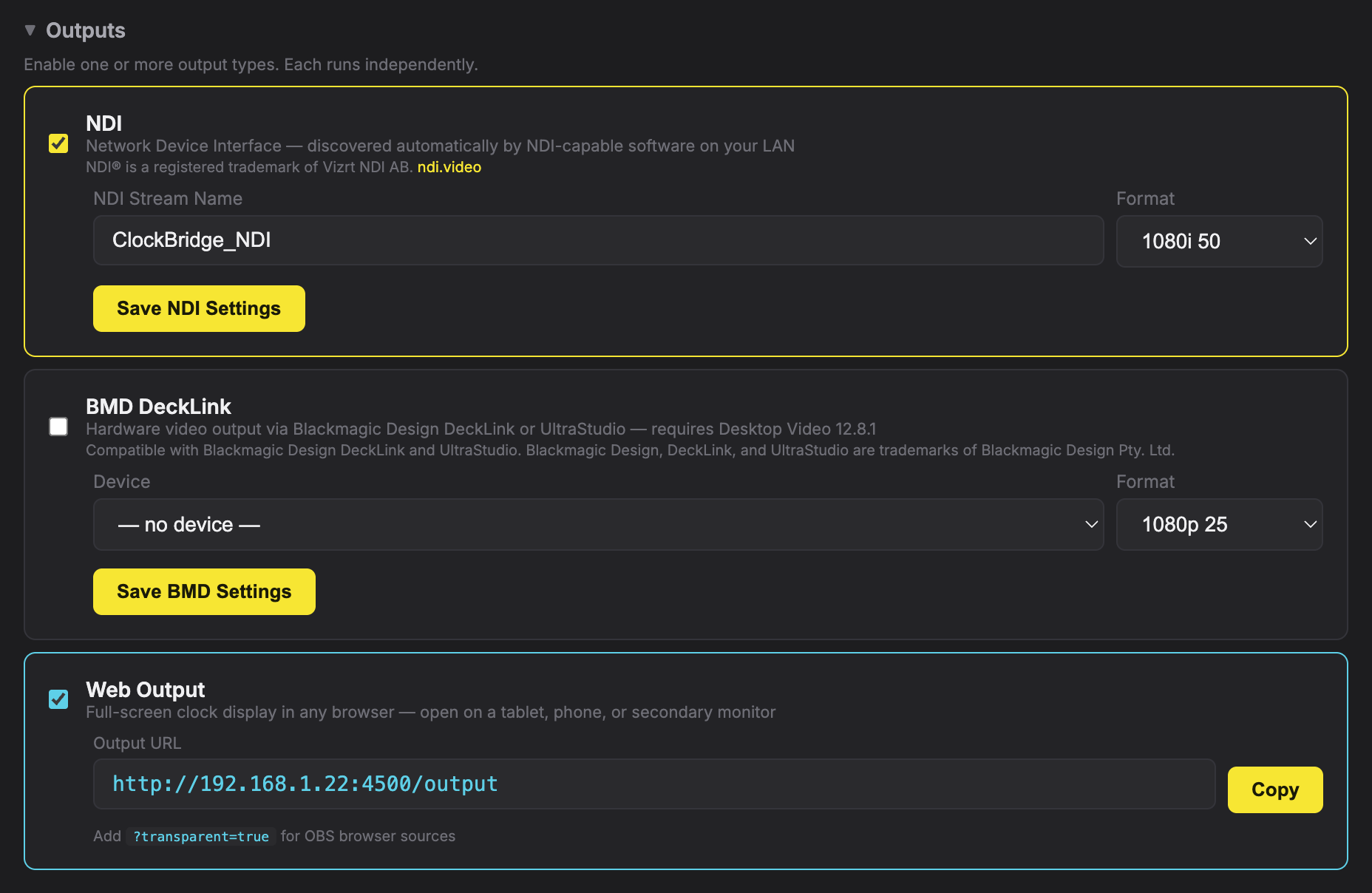
Enable one or more output types. Each runs independently.
A status strip at the top of the /setup page shows an ACTIVE/INACTIVE badge for all three output types (NDI, BMD DeckLink, Web Output) at a glance, regardless of whether the Outputs section itself is expanded. Below that, each output type gets its own card with an enable toggle, its own settings, and its own save button — enabling one has no effect on the others.
NDI
Toggling this card on/off enables NDI — described on the page as "Network Device Interface — discovered automatically by NDI-capable software on your LAN." The card carries the required trademark notice: "NDI® is a registered trademark of Vizrt NDI AB." with a link to ndi.video.
NDI needs drivers on the server machine. Install the free NDI Tools on the computer running the ClockBridge Server app; it includes the NDI drivers ClockBridge sends through. If ProPresenter is already installed on that same computer, you can skip this step, because ProPresenter installs and runs the required NDI drivers in the background.
Fields:
- NDI Stream Name — the name other NDI-capable software on the network will see when discovering this source.
- Format — a dropdown of standard broadcast formats, shown as:
1080i 50,1080i 59.94,1080i 60,1080p 25,1080p 29.97,1080p 30,1080p 50,1080p 59.94,1080p 60.
Save NDI Settings applies changes.
BMD DeckLink
Described as "Hardware video output via Blackmagic Design DeckLink or UltraStudio — requires Desktop Video {driver version}." The {driver version} part shows whichever Blackmagic Desktop Video version ClockBridge finds installed on the server machine, or unavailable if no compatible driver or hardware is found. The card also carries the required trademark notice: "Compatible with Blackmagic Design DeckLink and UltraStudio. Blackmagic Design, DeckLink, and UltraStudio are trademarks of Blackmagic Design Pty. Ltd."
Fields:
- Device — a dropdown populated from the DeckLink/UltraStudio hardware currently detected on the server machine. It reads "— no device —" when nothing is selected, and if a previously-saved device can no longer be found it's still listed, suffixed "(not detected)".
- Format — a broader dropdown than NDI's, since DeckLink hardware supports more frame rates, shown as:
1080p 2398,1080p 24,1080p 25,1080p 29.97,1080p 30,1080p 50,1080p 59.94,1080p 60,1080i 50,1080i 59.94,1080i 60,720p 50,720p 59.94. (The 23.98fps option appears as "1080p 2398" in the list.)
Save BMD Settings applies changes. On Windows, if no DeckLink devices are detected, the card also shows a notice: "No DeckLink devices found. If you have Blackmagic hardware connected, make sure Desktop Video is installed." with a link to Blackmagic's Capture and Playback support page. This notice is Windows-specific because Blackmagic's driver license doesn't permit ClockBridge to bundle DeckLinkAPI.dll — the operator has to install Desktop Video separately on that machine.
Web Output
Described as "Full-screen clock display in any browser — open on a tablet, phone, or secondary monitor." Once enabled, the card shows an Output URL field — http://<server-ip>:<port>/output — read-only, with a Copy button next to it, plus a note: "Add ?transparent=true for OBS browser sources."
There's no format or device to pick for Web Output — it's the same rendered canvas served as a web page. Point any browser — a tablet, a spare monitor, an OBS Browser Source — at the copied URL and it shows the composited Clock Windows live.
Server Config Presets
A Server Config Preset is a snapshot of the whole server's own settings — Clock Windows, Outputs, and the feature toggles that control what shows up in the control panel — saved and loaded from /setup's own Server Config Presets section, not from the control panel. Give the snapshot a name under Config Name and click Save Current; saved presets appear in a list below, and can also be exported/imported as a file across machines via Import Config. This is unrelated to the two preset types that live in the control panel (Presets and Clock Presets) — see Chapter 4 — The Control Panel for a full comparison table of all three.
Next steps
- Connect ProPresenter, QLab, and other show software as clock sources in Chapter 3 — External Sources.
- Assign timers to the Clock Windows configured here from the control panel, covered in Chapter 4 — The Control Panel.