Appearance
Features in the Control Panel
Chapter 6 covers the switches the systems tech sets on
/setup. This chapter shows what each of those features actually does for the person running the show — what appears in the User app, and where.
Every screenshot here is the control panel exactly as the User app shows it. (The User app and a browser tab show the identical control panel — see Chapter 1.)
How features reach the operator
A feature can show up in the control panel in three places:
- The ⚙ gear panel on each timer — most features add a control here. Click the gear on a timer card to open it.
- The timer card itself — status labels, colors, and buttons such as Mute and DISPLAYED / QUEUED.
- The preview strip at the top — the live view of what each Clock Window is showing.
Turning a feature off on /setup removes its control from the gear panel completely. Turning it on makes the control available. Whether a new timer starts with it already ticked is decided separately by Feature Defaults (Chapter 6).
Here is the same countdown timer's gear panel with every feature off, and with every feature on:
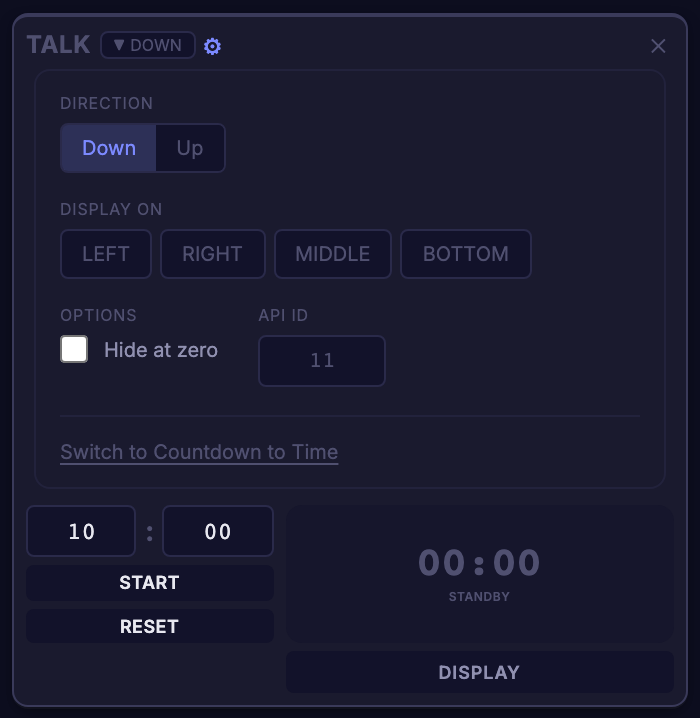
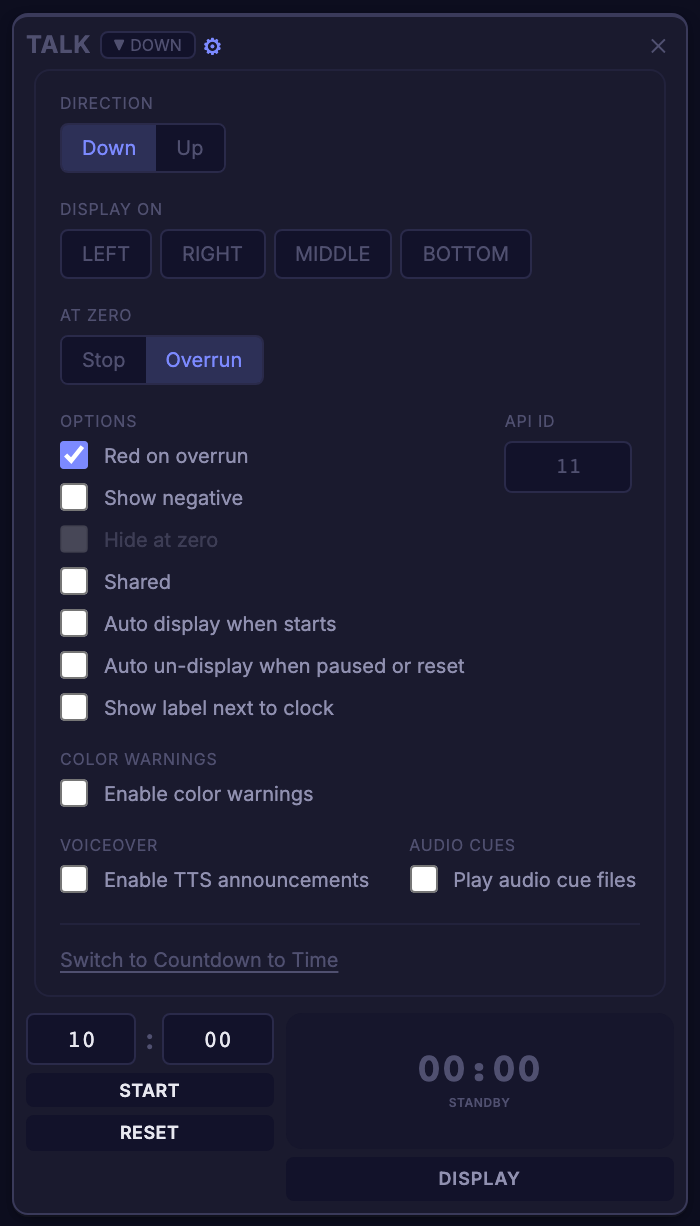
Everything below describes one of those added controls, in the order they appear.
Overrun
Decides what a countdown timer does when it reaches zero. In the gear panel, At Zero gets a Stop / Overrun switch.
- Stop — the timer stops at
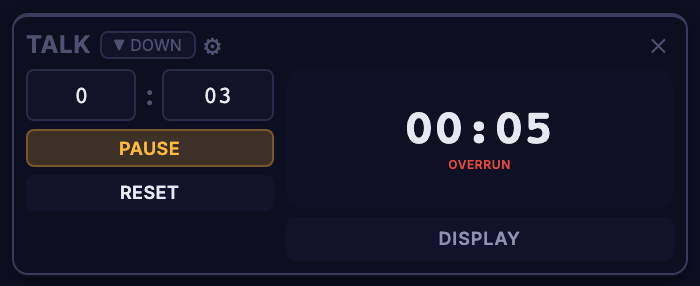
00:00and returns to standby. - Overrun — the timer keeps counting past zero, and its card is labeled OVERRUN, so the operator can see how far over they are.
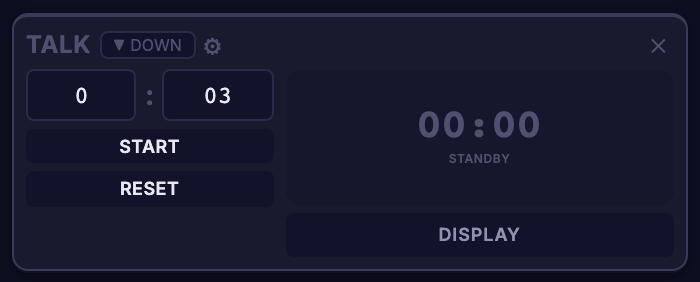
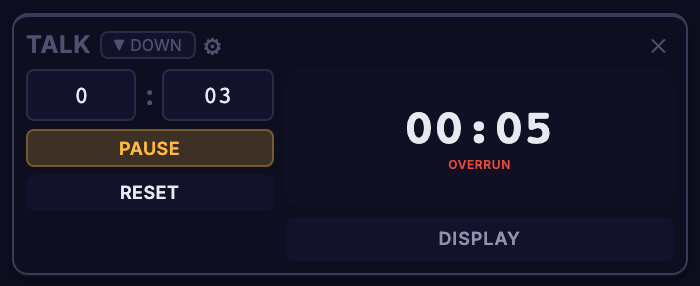

Overrun controls two other options below it — Red on overrun and Show negative — which are only available while a timer is set to Overrun. Hide at zero is the opposite choice (hide the timer instead of overrunning), so it's grayed out while Overrun is selected.
Red on overrun
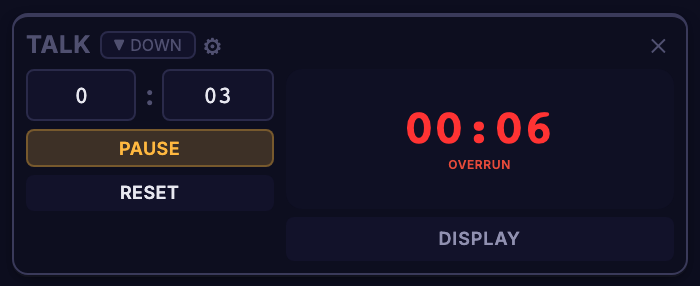
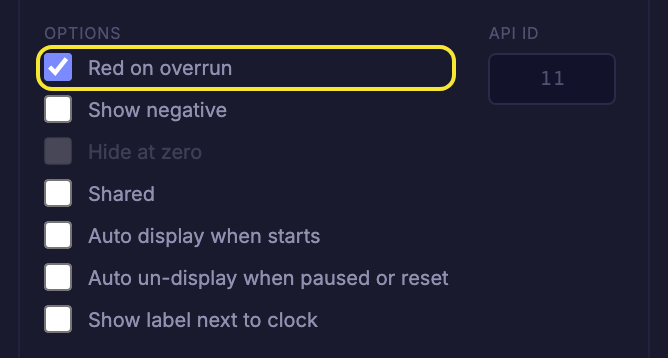
Turns the timer red once it's past zero. It applies to the control panel and the outputs, so everyone watching sees the overrun at a glance. Tick Red on overrun in the gear panel.
Flash on overrun
Makes a timer that is past zero blink instead of just sitting still. It's for the timers where an overrun really has to be noticed. It applies to the control panel and to every output (NDI, Blackmagic and the web output), and only to the timers you choose: tick Flash red on overrun in the gear panel, next to Red on overrun. Timers without the tick keep behaving as before.
The feature is off until it's switched on in /setup (see Chapter 6), where the system also chooses how it looks and how fast it flashes. The look is one setting for the whole server: either red and the normal color, or the normal color and nothing at all (the digits vanish). When the system picks the second look, the tick box reads Flash on overrun, because nothing turns red. The option only appears for timers that can overrun, and it's grayed out while a timer's At Zero is set to Stop. It doesn't need Red on overrun to be ticked: with only the flash ticked, the timer blinks as set up on the server. A timer that is paused mid-overrun stops flashing and shows steady red (or its normal color, if Red on overrun isn't ticked). The tick box is also in the form for Scheduled Timers, so a timer a schedule creates or reconfigures can flash too.
Negative display
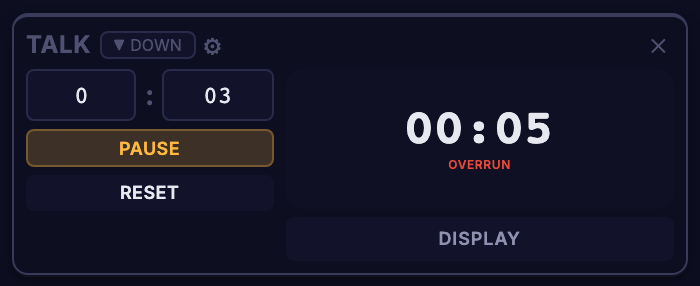
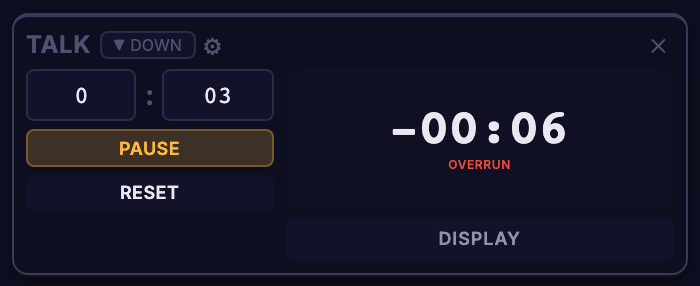
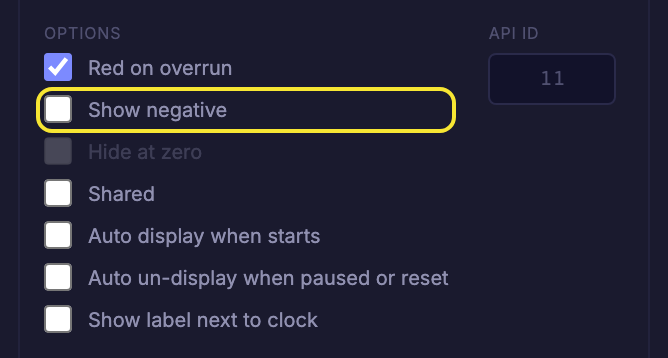
Adds a minus sign during overrun, so 00:06 past zero reads -00:06. Tick Show negative in the gear panel. It only has an effect on a timer set to Overrun.
Color Warnings
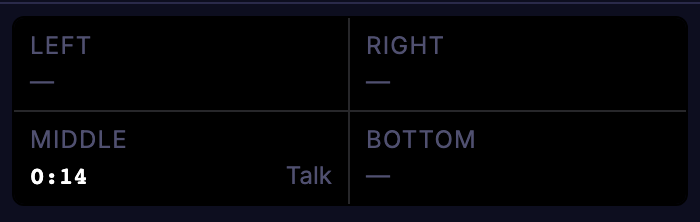
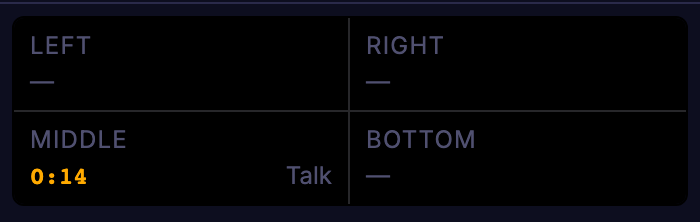
Changes a countdown's color as it approaches zero: amber at the Warning point and red at the Critical point. Tick Enable color warnings in the gear panel, and two time fields appear — Warning and Critical — where you set those moments in M:SS.
The colors show on the outputs. The preview strip at the top of the control panel shows them too, once Settings → Appearance → black preview background is on; that setting makes the preview match what the output really looks like.

Progress bar
A bar across a Clock Window that fills from left to right as a timer runs, and is completely full at the end. It lets a presenter see how much of their time is gone without reading the digits.
Three things have to be switched on before a bar appears, and each is decided in a different place:
- The system switches Progress bar on in
/setup(see Chapter 6). It's off until then, and nothing about it shows in the control panel. - The Clock Window has Progress bar ticked in its settings, with its position, thickness and track colour (see Chapter 2). This is how one window gets a bar and another doesn't.
- The timer has Show progress bar ticked in its gear panel, next to the other options.
Only a timer that knows when it ends can have a bar, so the tick box is only offered on two kinds:
- Down timers. The bar is empty at the start and full at 0:00. Adjusting the time during a run just moves the bar to match.
- Time timers (count down to a time of day). The bar fills from the moment the timer is started to the target time. A Time timer only has a bar while it is running, so there is none before it's started or while it's paused (its digits are blank then too).
Up timers, count-up-from-a-time timers, Clocks, Messages and SMPTE never have one, because they never reach an end.
The fill is always the same color as the digits. It's white (or the Clock Window's color) normally, amber and then red as Color Warnings kick in, and red in overrun. The bar stays full once the timer reaches the end. If Flash on overrun is ticked, only the digits flash; the bar stays steady. The empty part of the bar is the track color set on the Clock Window.
The bar is exactly as wide as the clock digits and lines up with them (centered, left or right, following the window's alignment), and its ends are softly rounded. It takes its own strip along the top or bottom edge of the window, and the digits shrink a little to fit in what's left, so they never sit on top of it. Its width stays steady as the digits change. It appears on every output (NDI, Blackmagic and the web output). The timer's card in the control panel shows a thin matching bar under the digits.
Auto-cue
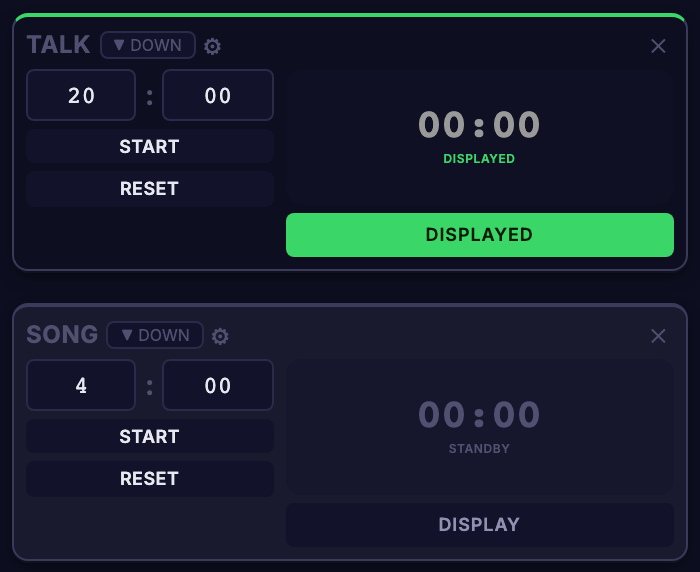
Controls what happens when you display a timer on a Clock Window that's already showing another one.
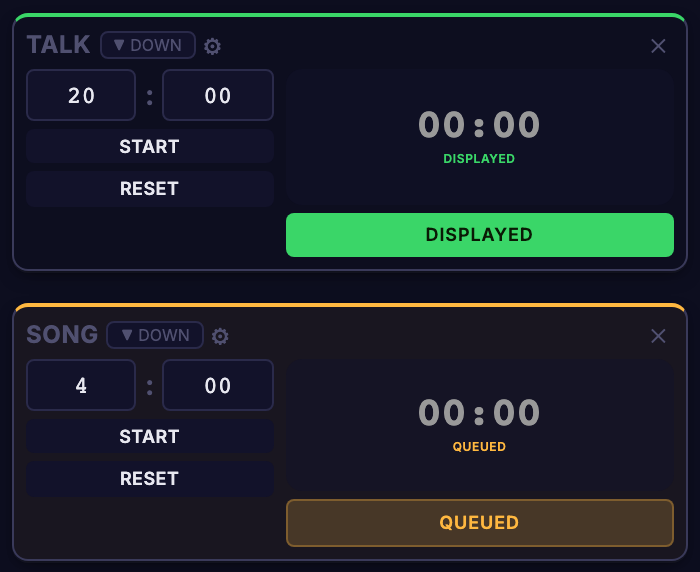
- On — the timer that was showing steps aside and waits in a queue (its card says QUEUED). When you hide the timer on top, the queued one comes back automatically.
- Off — the new timer simply replaces the old one. Nothing is queued, and hiding the new timer leaves the window empty.
Both timers below were sent to the same Clock Window, with Talk displayed after Song:
Show queue in preview
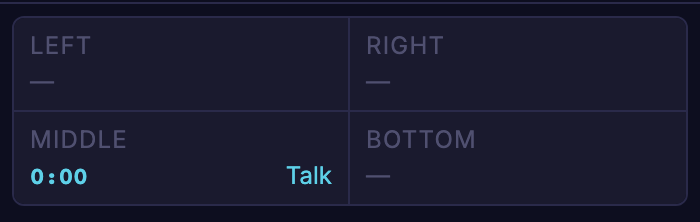
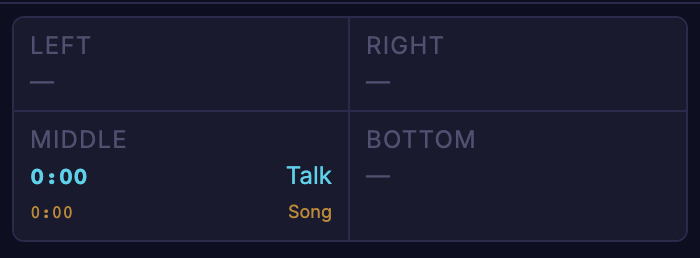
An add-on to Auto-cue. When on, the preview strip lists the queued timers in smaller amber text underneath the one that's showing, so the operator can see what's coming next without scrolling the timer list.
Auto Display
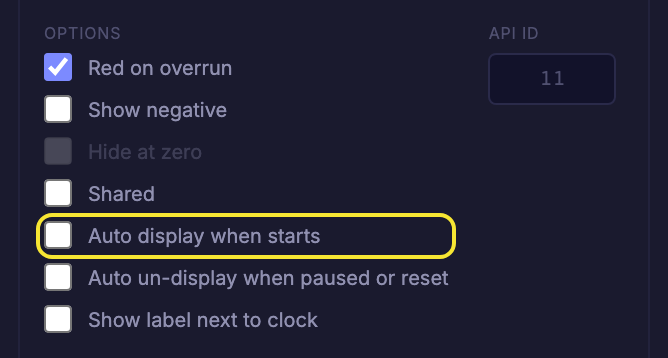
Puts a timer on its Clock Windows the moment you start it, so the operator doesn't have to press DISPLAY as a second step. Tick Auto display when starts in the gear panel. (It isn't offered on Time-mode timers.)
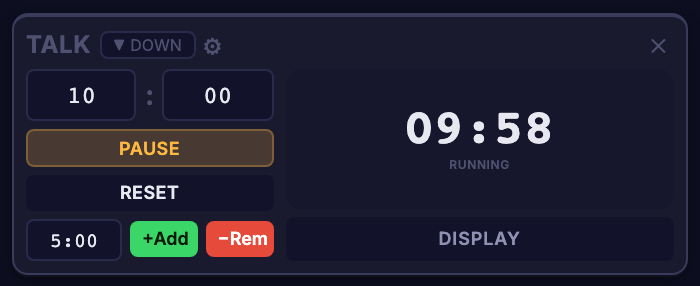
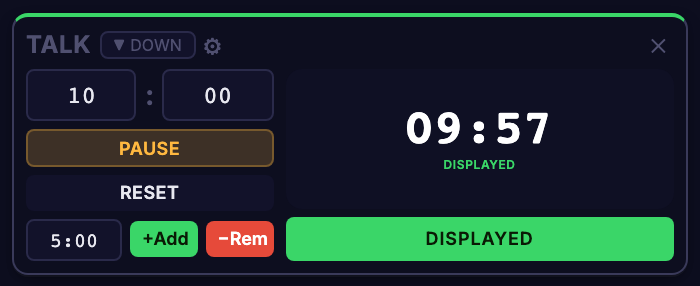
For a ProPresenter External timer, this becomes a two-way choice instead: All Clips or Selected only.
Auto Un-display
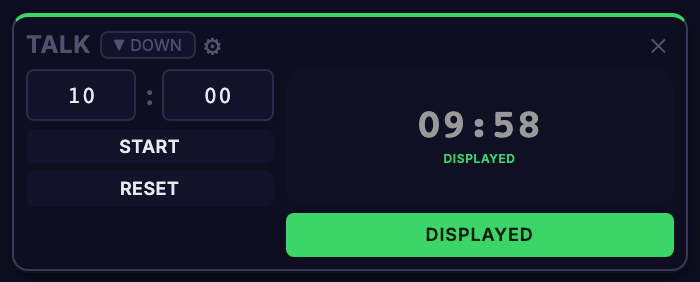
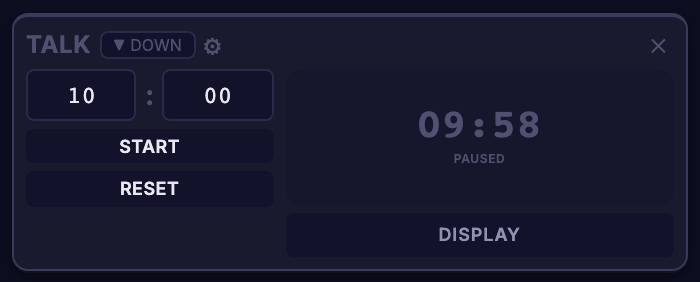
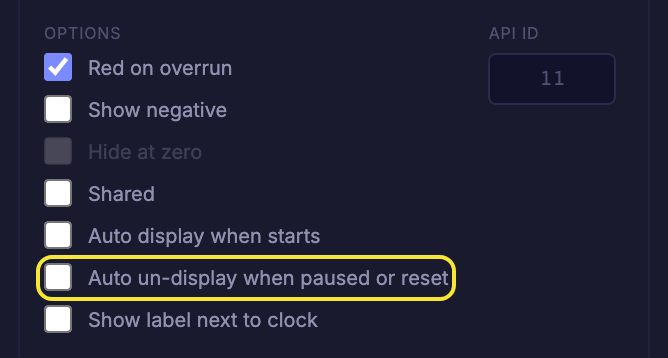
The reverse of Auto Display: a Down or Up timer takes itself off the Clock Window when it's paused or reset, instead of sitting on screen frozen. Tick Auto un-display when paused or reset in the gear panel. It's only offered on Down and Up timers.
Auto display on server launch
Time of Day clocks only. A Time of Day clock always runs, so there is nothing to start; what a restart loses is the display. Tick Auto display on server launch in the gear panel and that clock puts itself back on its Clock Windows as soon as the server starts, with nobody pressing Display. The tick box is only offered on Clock timers, and a clock with no Clock Window assigned is skipped, since there is nothing to show it on. If the clock's Clock Window is linked to a ProPresenter clock, ClockBridge also sends it there as soon as that ProPresenter connects, since ProPresenter usually isn't connected yet when the server starts. It only acts when the server starts (and when ProPresenter reconnects). It doesn't change what happens when you load a Preset.
Voiceover (TTS)
Speaks the time remaining aloud through the system's speakers (or whichever audio output you choose) as a countdown passes fixed milestones. It's meant for the operator who isn't looking at a screen — a stage manager running cues, or someone at the lectern.
What it says. At each milestone it announces the time left and the timer's name, for example "5 minutes remaining on Sermon". For the final stretch it counts the last five seconds aloud, "5, 4, 3, 2, 1", as a single phrase rather than five separate announcements. The milestones are 10 minutes, 5 minutes, 1 minute, 30 seconds, 10 seconds and the Countdown (5-4-3-2-1).
When it speaks. All of these must be true:
- Voiceover is enabled on
/setup, and Enable TTS announcements is ticked on that timer's gear panel. - The timer is a countdown that is running.
- The timer is on at least one Clock Window (it's been displayed). A timer running off-screen stays silent.
- The timer isn't muted (see below).
Each milestone fires once per run. Reset or restart the timer and they're armed again. A timer that's displayed or started already below a milestone skips that milestone — it won't announce "10 minutes" on a 4-minute timer.
Setting it up on /setup (Voiceover / TTS section):
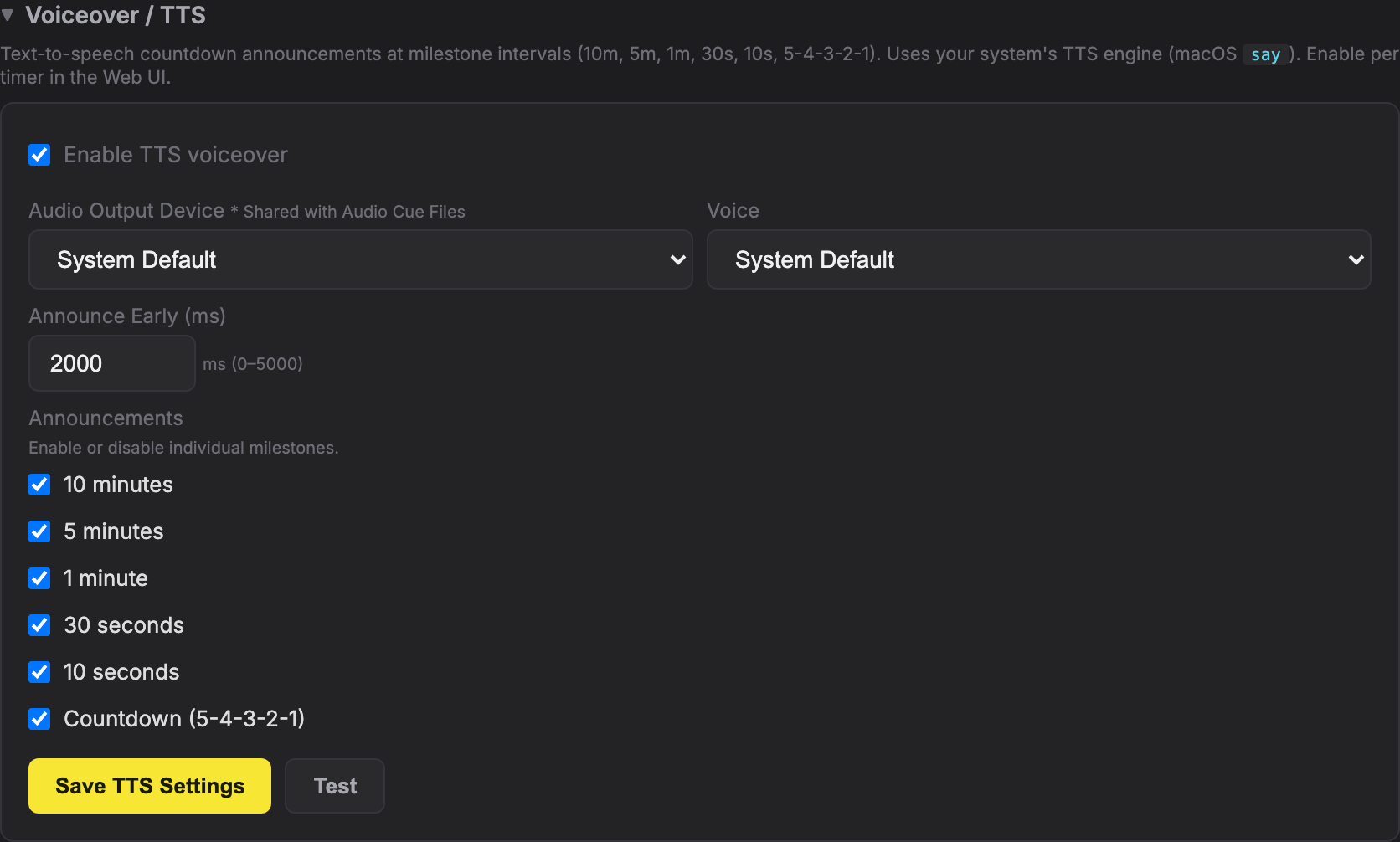
- Enable TTS voiceover — the master switch. Off removes the checkbox from every timer's gear panel.
- Audio Output Device — which output speaks. System Default follows the computer's default output. This setting is shared with Audio Cue Files; change it in either place and both follow. The choice is remembered by the device's name, so it survives a restart of the server computer even though the system renumbers its audio devices. If the saved device isn't connected when a cue or announcement fires, ClockBridge plays through the system default output instead and the dropdown keeps showing your saved choice.
- Voice — the voice used, chosen from the voices installed on the server computer.
- Announce Early (ms) — starts each announcement this many milliseconds before the milestone, 0 to 5000. Speech takes a moment to say, so with the default of 2000 "1 minute remaining" finishes close to the true one-minute mark instead of trailing it. Raise it if announcements land late.
- Announcements — tick or untick individual milestones. Unticked ones never speak, on any timer.
- Test — speaks a sample phrase through the chosen device and voice, so you can check levels without running a timer.
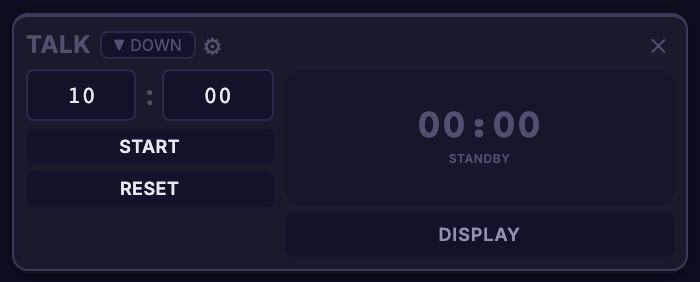
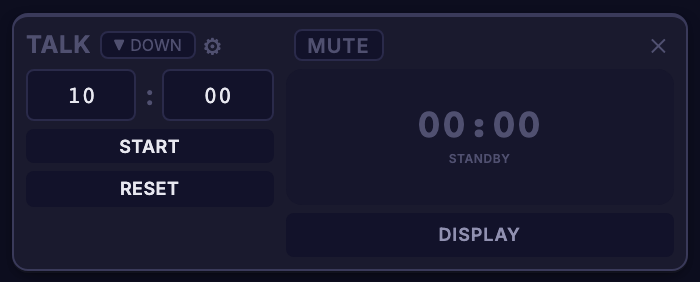
On the timer. Tick Enable TTS announcements under Voiceover in the gear panel. Once Voiceover or Audio Cues is on, the card also gets a Mute button. It silences that timer's audio for the moment without changing any settings, and it clears itself when the timer is reset. On External timers, clips you've marked Mute Audio (see Configuring Video Clips below) mute the timer automatically while they play.

Two audio features, one output
Voiceover and Audio Cue Files share one output device, so a single setting decides where both are heard. If you want announcements on a different output from your other audio, set it once and test both.
Audio Cue Files
Plays your own audio files at fixed times remaining — a recorded voice, a chime, a house-style sting — instead of a computer voice. Use it when you want a specific sound or a specific person's voice. Files play on the server computer, through its audio output, not on the User app's computer.
Milestones. Each file is tied to one slot: 5 minutes, 2 minutes, 1 minute, 30 seconds, 10 seconds, and Countdown (5-4-3-2-1), which plays at the 5-second mark — so a single file should contain the whole five-second countdown. Slots with no file simply stay silent.
Setting it up on /setup (Audio Cue Files section):
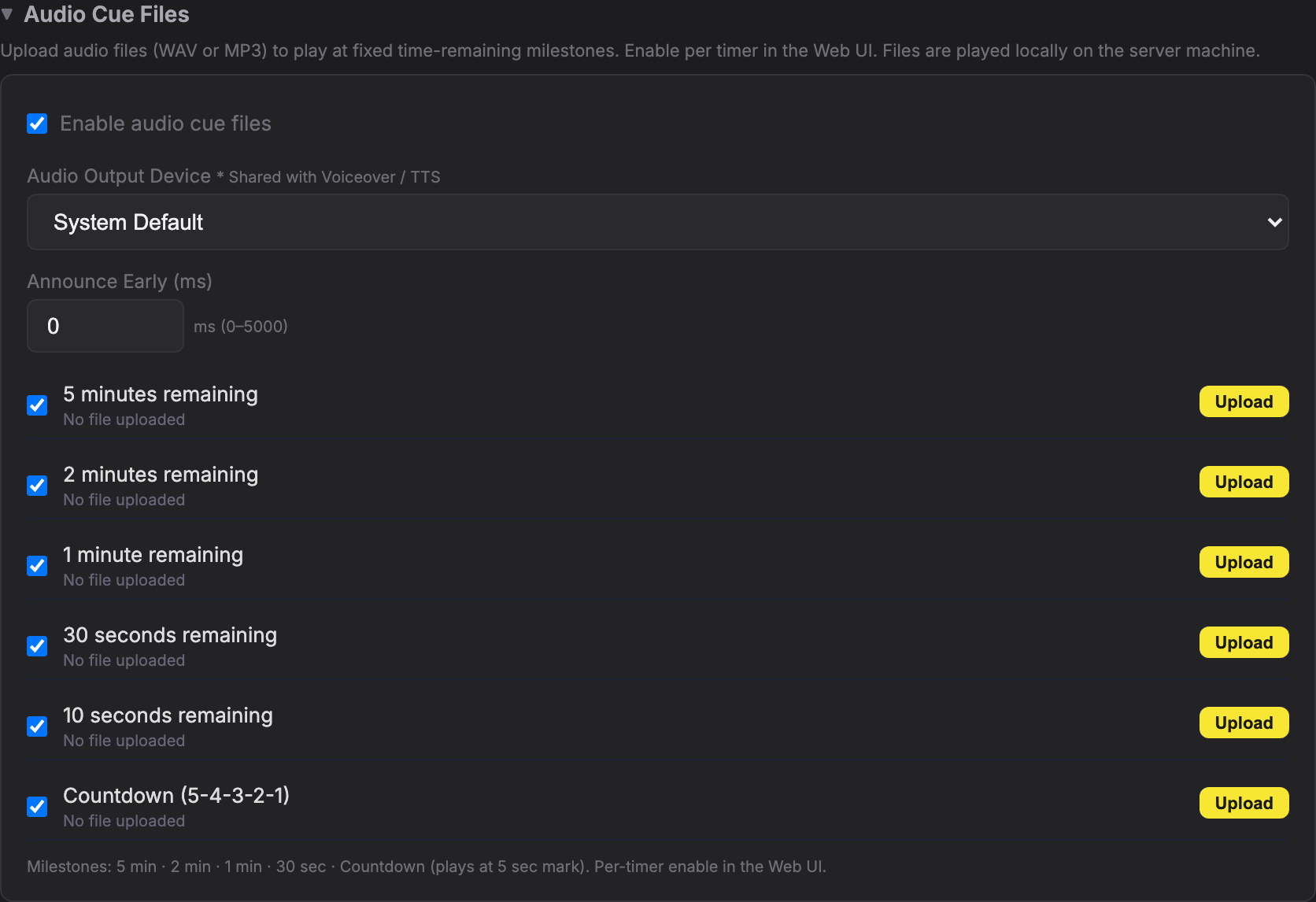
- Tick Enable audio cue files.
- Pick the Audio Output Device (shared with Voiceover).
- Click Upload beside a milestone and choose a
.wavor.mp3file. Once uploaded, the row shows the file name and gains buttons to play it back and Remove it. Uploading again replaces the file. - Untick any milestone you don't want played.
- Optionally set Announce Early (ms), 0 to 5000, to start each file slightly ahead of the milestone — handy for long lead-ins. It's separate from Voiceover's setting and defaults to 0.
On the timer. Tick Play audio cue files in the gear panel. It's offered on countdown and External timers only. Cues play while the timer is running and counting down. Unlike Voiceover, the timer doesn't have to be on a Clock Window. Each milestone plays once per run and re-arms on reset or restart. The same Mute button silences it temporarily.

Which to use? Voiceover needs no files and always says the timer's name; Audio Cue Files sounds exactly how you recorded it, but only has the six slots. You can switch both on for the same timer, though they'd talk over each other at matching milestones, so most systems pick one.
Shared
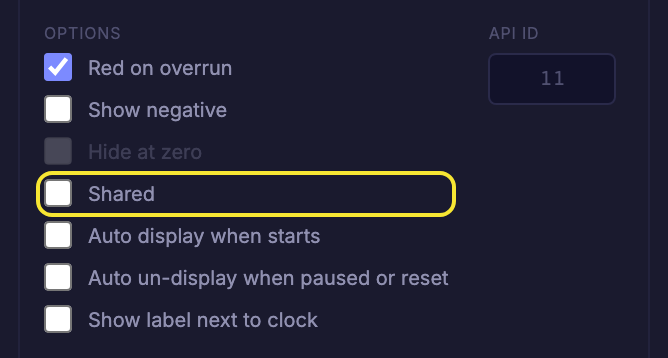
Makes a timer available to other ClockBridge servers, so a second system can use it as an External source (Chapter 3). Tick Shared in the gear panel. Unticking it asks Remove shared? first, because other servers may be using it. External timers can't be shared.
Clock Labels
Puts a short piece of text in front of the time on the output, in the same size, font and color as the clock itself — so "10:00" becomes "Sermon 10:00" or "TIME LEFT: 10:00". It's for outputs that carry more than one clock, where a viewer needs to know which clock they're reading.


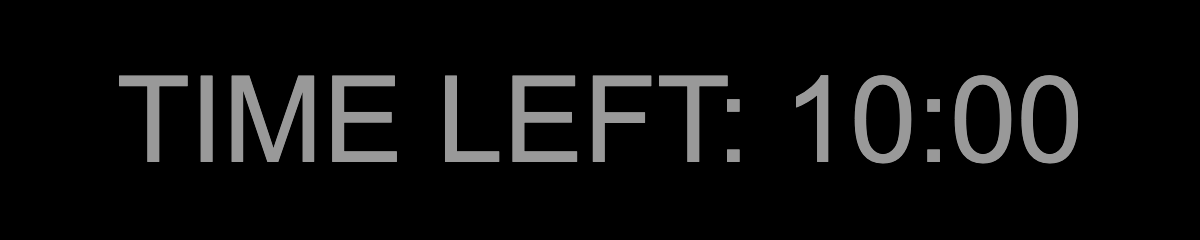
Turning it on for a timer. Open the timer's gear panel and use the three controls in the Options list:
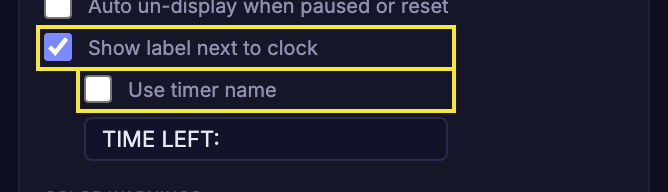
- Tick Show label next to clock. By default the label is the timer's own name.
- To write something else, untick Use timer name. A text field appears — type the label there and click out of the field (or press Enter) to save it.
- Untick Show label next to clock to remove it again.
Spacing. With the timer's name, ClockBridge adds a gap between the label and the time for you. With custom text it adds nothing and keeps every space you type, so type the trailing space yourself — TIME LEFT: (with a space after the colon) — or the label will touch the numbers.
Where it shows. The label appears on the output (the Clock Window itself, whether that's NDI, a Blackmagic device or the web output), not in the control panel's preview strip. It isn't shown on Message timers.
Don't confuse this with the Clock Window's own label
Each Clock Window on /setup (Chapter 2) also has a Show label checkbox. That one prints the timer's name in small capitals above the time, for every timer shown in that window. Clock Labels is per timer, sits beside the time at full size, and can say anything you like. They can be used together.
Configuring Video Clips
When a timer follows an External source — ProPresenter, ProVideoPlayer, QLab or Resolume — its gear panel gains a Configure Video Clips section. It lets you teach ClockBridge how to treat specific clips: trim the end of a video, skip a clip, or silence its audio. Everything is remembered by the system, so you configure a clip once and it behaves the same every service.
Open it from the gear panel: click the gear on the timer, then Configure Video Clips.
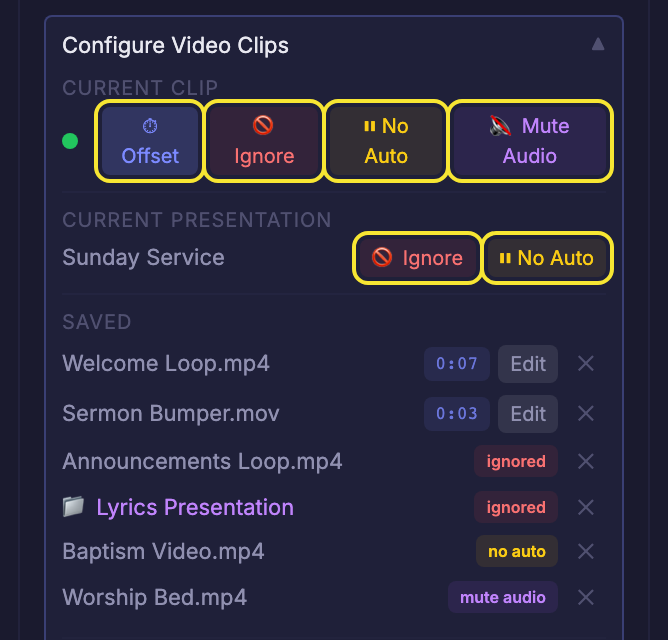
What you'll see depends on the features switched on
The section appears only when at least one of ProPresenter Video Offsets, Ignored Content or Auto Display is on (Chapter 6). Each button below only appears if its own feature is on — Offset needs ProPresenter Video Offsets, Ignore needs Ignored Content, No Auto / Auto Display needs Auto Display, and Mute Audio needs Voiceover or Audio Cue Files.
The panel
- Current Clip — what's playing right now. A green dot and the clip's name mean a video is live; No video playing means there's nothing to configure yet. Start the clip in the source first, then use the buttons on this row.
- Current Presentation — the presentation that clip belongs to, with Ignore and No Auto / Auto Display for the whole presentation at once (ProPresenter). Useful for a lyrics presentation you never want on the clock.
- Saved — everything you've configured. Each row shows what's set (a time, ignored, no auto, auto display, mute audio), and ✕ removes it. A 📁 marks an entry that applies to a whole presentation.
The live buttons (Current Clip / Current Presentation) work with ProPresenter. For the other sources, the Saved list still applies and can be filled from Companion or RossTalk (see below).
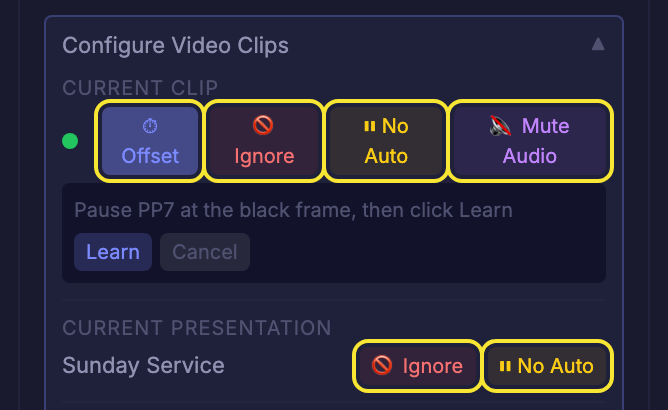
Offset — end the timer before the video ends
Many videos end on a few seconds of black or a fade-out. The timer would keep counting through it. An offset tells ClockBridge where the useful end is.
- Start the video in ProPresenter and pause on the last frame that matters (the black frame, for example).
- Click ⏱ Offset. The panel says Pause PP7 at the black frame, then click Learn.
- Click Learn. ClockBridge captures the time left at that moment and saves it.
From then on, that clip's countdown reaches 0:00 at the black frame instead of when the file ends. Saved offsets show as a time (for example 0:07) in the Saved list. Edit re-learns it, Re-learn does the same from the Current Clip row, and ✕ deletes it.
Offsets follow the slide label
An offset is matched by the slide label set in ProPresenter. If you rename a slide's label afterwards, the offset stops applying and a ⚠ appears beside it in the Saved list — re-learn it. Each label should be unique within its presentation.
Ignore — skip this clip
🚫 Ignore tells ClockBridge to pretend the clip isn't there: the timer won't start for it, follow it, or display it, and an already-displayed timer comes off the Clock Window. Use it for background loops, walk-in slides and pre-service content you never want counted. Ignore the presentation to skip everything in it. Remove the entry from Saved to bring it back.
Auto Display per clip — No Auto and Auto Display
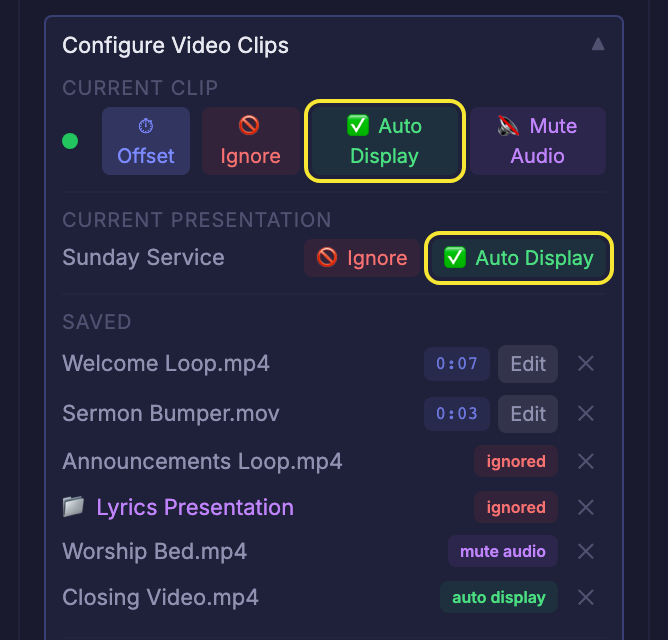
These two decide whether the timer puts itself on the Clock Windows for a given clip. Which button you see depends on the timer's Auto Display setting (earlier in this chapter) — a ProPresenter External timer offers two modes, and the panel follows whichever is chosen:
- All Clips — every clip auto-displays except those you mark. The button is ⏸ No Auto. Marked clips still run, but you display them by hand.
- Selected only — nothing auto-displays except clips you mark. The button is ✅ Auto Display. Mark only the clips that matter, such as the one roll-in video.
Other External sources have just the single Auto display when starts checkbox; ticked, it behaves like All Clips.
Mute Audio — keep a clip's voiceover quiet
🔇 Mute Audio mutes the timer's Voiceover and Audio Cue Files for as long as that clip is playing, so a video with its own soundtrack isn't talked over. The timer is muted automatically while that clip plays, and sound returns when the clip ends or changes. Saved entries show as mute audio.
Doing it from Companion or RossTalk
You don't have to stand at the control panel to configure clips. Everything above can be triggered from a Bitfocus Companion button — handy on a Stream Deck beside the playback computer, so you can learn an offset or ignore a clip while it plays without touching the mouse:
- Learn Video Offset
- Ignore / Unignore / Toggle Ignore — Current Clip, or Current Presentation
- Enable / Disable / Toggle Auto-Display — Current Clip, or Current Presentation
Companion also gives you feedbacks to light a button when the current clip has an offset, is ignored, or will auto-display, and variables for the clip name and its stored offset. See Chapter 5 — Control Methods for the full list and Chapter 5a — Companion Variables.
RossTalk offers the same controls as buttons on an External timer: 8 (learn offset), 9 (ignore clip), 10 (no auto) and 11 (mute audio) — see Chapter 5. Saving a clip as Mute Audio is only available through the panel and RossTalk. For a quick silence from Companion, use the Mute Timer, Unmute Timer and Toggle Timer Mute actions (and the Timer Audio Muted feedback), which do the same as the Mute button on the timer card.
Next steps
- To decide which of these features are available, and which start out ticked, see Chapter 6 — User Preferences & Operator Handoff.
- For the timer card layout and the rest of the control panel, see Chapter 4 — The Control Panel.