Appearance
Getting Started
What ClockBridge does
ClockBridge manages countdown timers, clocks, and stage displays for live events. It drives output to screens over NDI, Blackmagic DeckLink hardware, or a plain browser page, and it stays in sync with the tools already running in your system — ProPresenter, QLab, Resolume, and others.
This chapter covers how ClockBridge is put together, how to install it, and what to expect the first time each part of it runs. Later chapters go deep on configuring the server (Chapter 2), the control panel itself (Chapter 4), and licensing (Chapter 9) — this one is about getting the pieces on a machine and talking to each other.
The Server app
The Server app is ClockBridge. It holds all timer and configuration data, and drives every output — NDI, BMD DeckLink, and Web Output. It's configured through a web UI: the /setup page (Chapter 2 — Server Setup) for server-level configuration, and the control panel (Chapter 4 — The Control Panel) for day-to-day timer operation.
The Server app (named ClockBridge) has no visible window. On macOS it doesn't appear in the Dock — it runs as a menu bar (tray) icon only. The tray menu gives you three actions:
- Open ClockBridge — opens the control panel in your default browser
- Setup — opens the
/setupconfiguration page - Quit ClockBridge — stops the server and exits
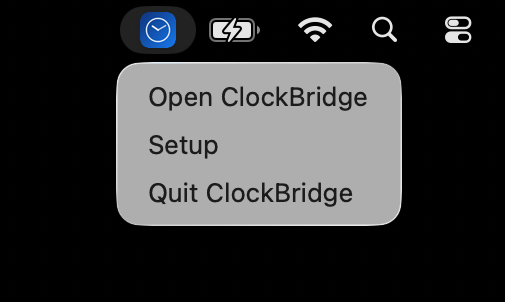
This is the app you install on whichever Mac is going to act as the always-on ClockBridge machine — typically the one already running other show software in your system.
Two ways to control ClockBridge
The control panel is a network service, not a feature built into one app — anything on the same network as the Server app can reach it. There are two ways to do that:
- The User app — a small, dedicated remote-control window that connects to a running server.
- A plain web browser — pointed at the server's address, no install required at all.
Both show the identical control panel: anything you can do from the User app, you can do the same way from a browser tab, and vice versa. (The Server app's own tray menu has an "Open ClockBridge" shortcut that opens this same control panel in your default browser — that's the browser method again, not a third option.)
The User app
The User app (named ClockBridge User) is a small 350×700 window that doesn't run a server of its own. It doesn't run timers or generate output — it connects to a Server app somewhere on the network and displays that server's control panel in its own dedicated window, separate from any browser tab.
The first time you launch the User app, it doesn't know which server to talk to yet. It asks for a server IP address or hostname and a port (the default is 4500) and tests the connection before proceeding.
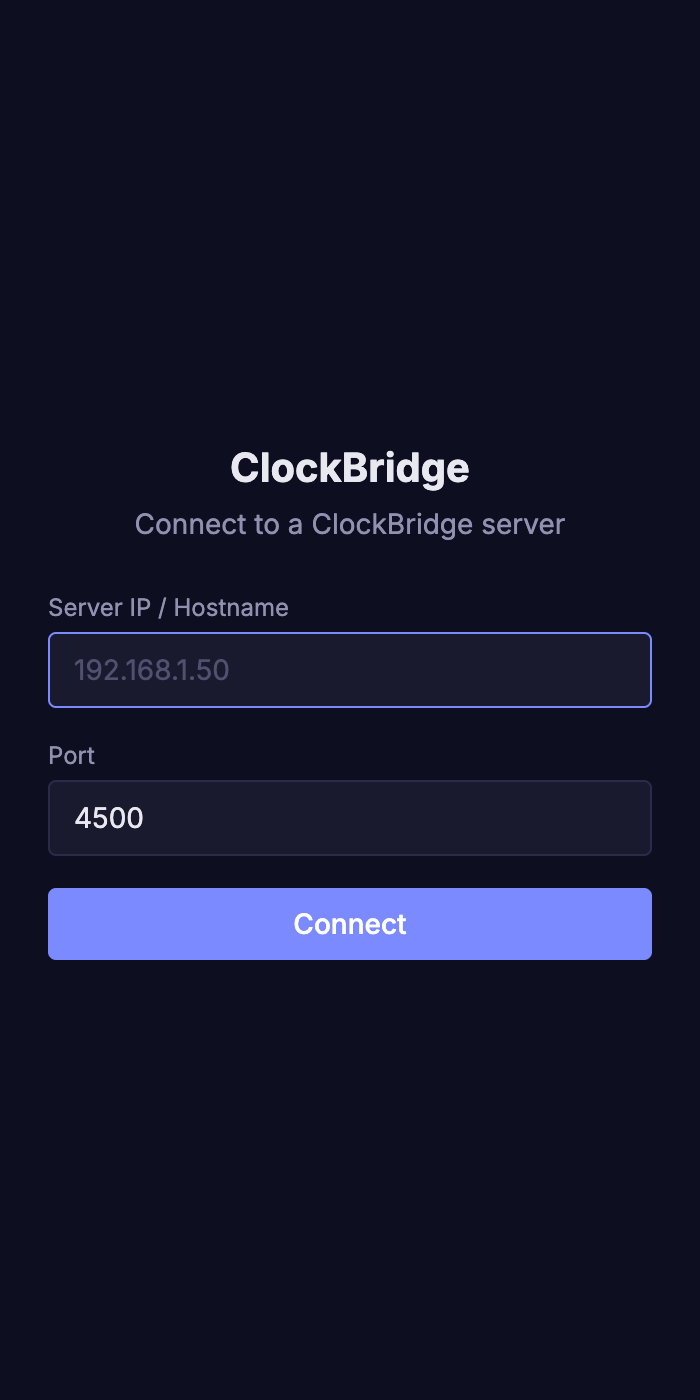
Once connected, the User app remembers that server and reconnects automatically on future launches. Common uses: a second operator's machine, a stage manager's laptop, or any machine that needs ClockBridge control without running the server.
Browser access
Because the control panel is served over plain HTTP by the Server app, any browser on the same network can reach it directly — no install, no User app required. Point a browser at the server's address and port (for example, http://192.168.1.50:4500) and the same control panel loads. Use this for a one-off second screen, a tablet, or a laptop you don't want to install anything on.
Installing ClockBridge
ClockBridge currently distributes as unsigned .pkg installers for macOS (Apple Silicon). Because the installers aren't notarized through an Apple Developer account, macOS Gatekeeper will block the first launch — this is expected. After installing, go to System Settings → Privacy & Security and choose Open Anyway next to the blocked-app notice. After that one confirmation, the app launches normally from then on.
Windows is also a supported platform: both the Server app and the User app ship Windows installers (NSIS .exe installers, built alongside the macOS builds). Like the macOS .pkgs, these aren't code-signed, so Windows SmartScreen may flag the installer on first run the same way Gatekeeper does on macOS — click through its "More info → Run anyway" prompt if you see it. The rest of this section walks through the macOS installer flow in detail; the Windows install is otherwise the same two-app pattern described above.
Where to download
Everything is on the ClockBridge download page at github.com/reidwwall/clockbridge-deploy/releases/latest: the Server and User apps for macOS and Windows, and the ClockBridge module for Bitfocus Companion. The beta is invite-only, so join the ClockBridge Discord server first and get your activation code (see Activating the Server below). You only need a code for the Server app.
Install order matters only in that the Server app needs to be running somewhere before the User app (or a browser) has anything to connect to:
- Install and launch the Server app on the machine that will host ClockBridge. It starts automatically and sits in the menu bar. The first time it launches, it asks for a beta invite code (see Activating the Server below); after that there's no setup wizard to click through, though you'll want to visit the
/setuppage (Chapter 2) before running a real show. - Install the User app on any machine you want a dedicated control window on — this can be the same Mac or a different one on the same network. On first launch, give it the Server app's IP address (or hostname) and port.
Both apps can live on the same Mac if you're running a single-operator setup, or on separate machines if you want the server tucked away and control distributed to one or more other stations.
Activating the Server
During the beta, the Server app has to be activated once with an invite code before it will run. You do this on first launch, right after installing — and then never again on that machine.
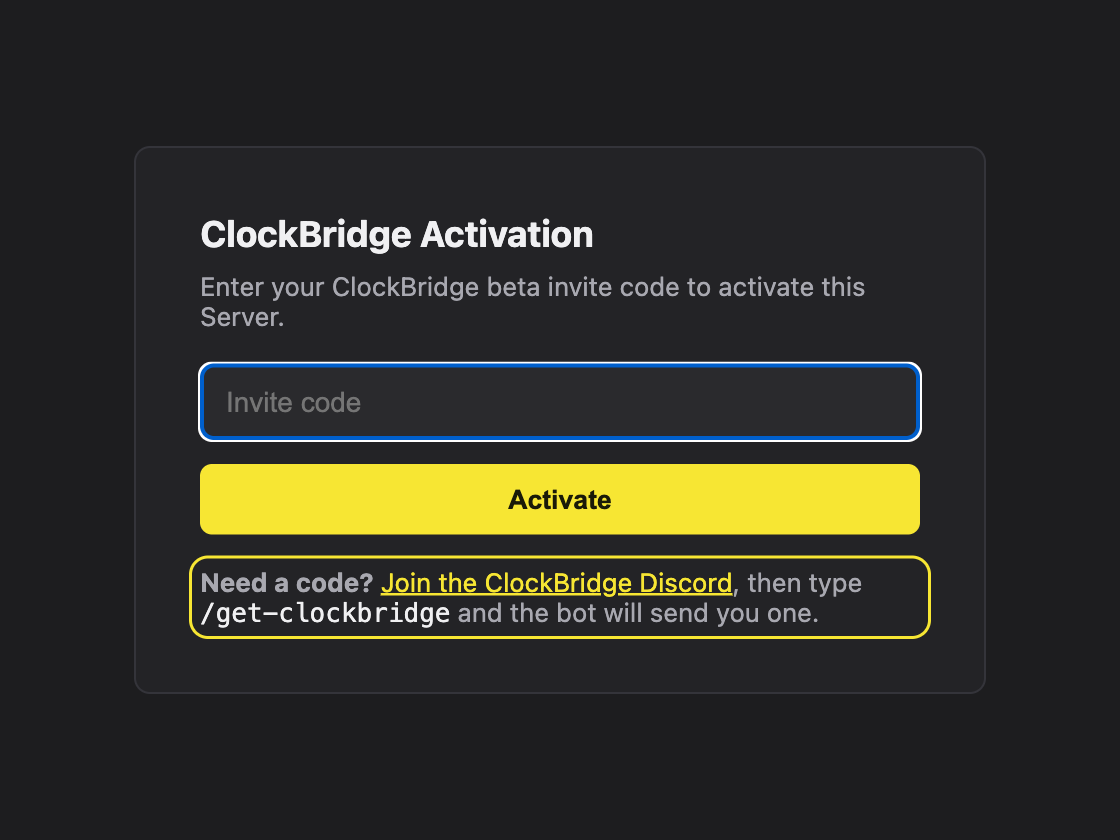
Until the Server is activated, the control panel isn't available: Open ClockBridge and a browser pointed at the server's address both show the activation screen instead. Activate from a browser first, then connect the User app.
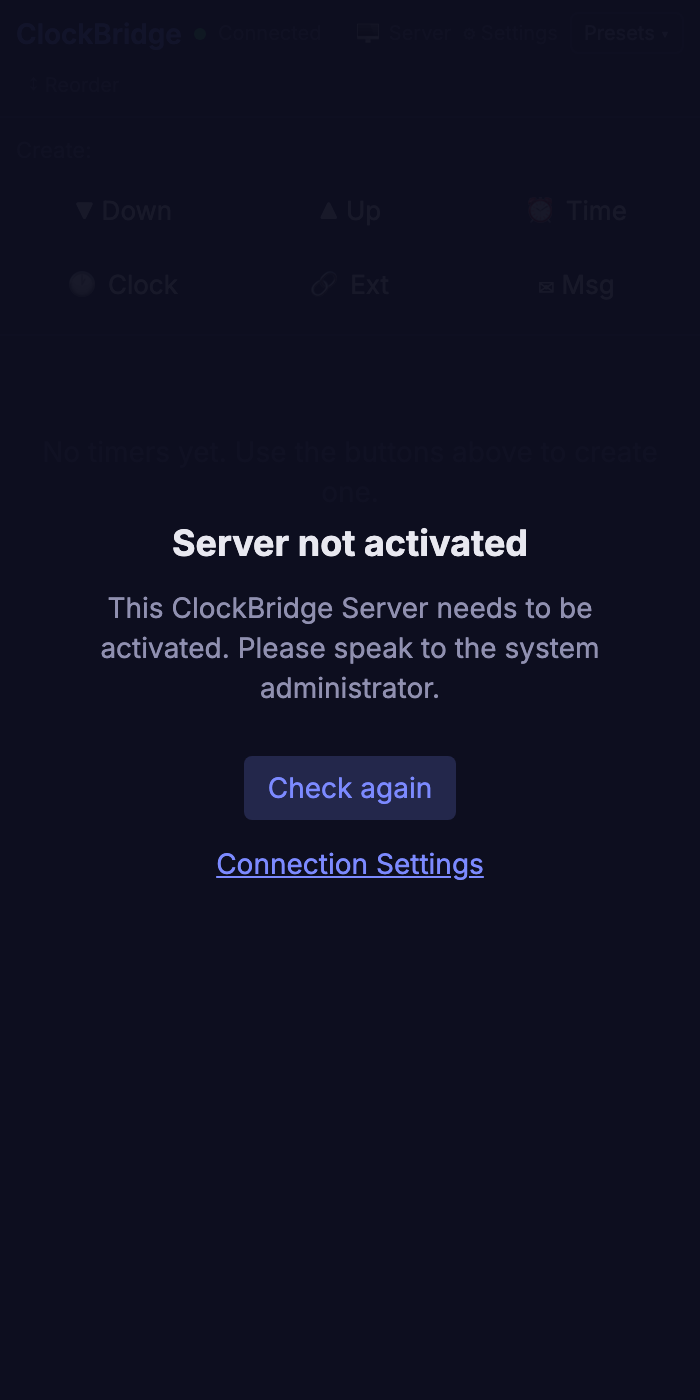
If you connect the User app to a Server that hasn't been activated yet, it doesn't ask for a code (only the Server does). Instead it shows a Server not activated message telling you to speak to the system administrator, and it clears by itself a few seconds after the Server is activated. Check again retries straight away, and Connection Settings lets you point the User app at a different Server.
Getting your invite code
Invite codes are handed out through the ClockBridge Discord server. The activation screen tells you where to look: under the Activate button, Join the ClockBridge Discord opens the server's invite link. Once you're in, use the /get-clockbridge command and the bot sends you a code that looks like CB-XXXX-XXXX. Each code belongs to you, and each tester has a limited number of installs — one per machine you run the Server app on.
Activating
- Make sure the machine is online. Activation checks your code with the ClockBridge activation service, so it needs an internet connection this one time.
- Launch the Server app and choose Open ClockBridge from its menu bar icon. The activation screen opens in your browser.
- Type your invite code. Capitals and spaces don't matter —
cb-x7k2-m9pwworks the same asCB-X7K2-M9PW. - Click Activate once and wait a moment. The button shows Activating… while it works.
- The page reloads into the control panel. You're done.
That's the only time you're asked. Restarting the Server, rebooting the Mac, and installing updates don't ask for the code again, and you don't need to be online to keep using ClockBridge afterward.
Staying activated
About once a day, while it's online, the Server quietly checks in with the activation service. Being offline never affects an activated Server — it just keeps running. The only thing that stops it is the beta program deliberately ending your access. In that case, the next time the Server app starts it shows the activation screen again, with a message that your activation is no longer valid, and asks for a new code. Enter a valid code to get going again.
Only the Server app is activated. The User app and browser access need nothing — they connect to an activated Server and work as usual.
If activation doesn't work, see Chapter 8 — Troubleshooting.
Licensing
The Server app's installer presents a license-agreement step you must accept before it will install; the User app's installer does not currently show a separate license screen of its own, though use of ClockBridge as a whole is governed by the same license terms. Full licensing detail — the license text itself, where to find it, and what it covers — is in Chapter 9 — Licensing. This chapter is concerned only with getting the software installed and connected; nothing about licensing changes how the Server app, User app, or browser access work.
Next steps
- Activate the Server with your invite code — Activating the Server, above.
- Configure the server — clock sources, outputs, and integrations — in Chapter 2 — Server Setup.
- Learn the control panel itself in Chapter 4 — The Control Panel.
- If you're setting up a second control station, Chapter 6 — User Preferences & Operator Handoff covers multi-operator patterns in more depth.