Professional Stage Timing

Complex productions need a timing solution that keeps everyone in sync. ClockBridge brings the features you need and unifies every clock in your production.

Pull in timers from industry standard playback tools. Add and remove time on the fly. Control from anywhere on your network, and trigger from Companion, OSC or RossTalk.

macOS  ·  Windows  ·  Free during the beta
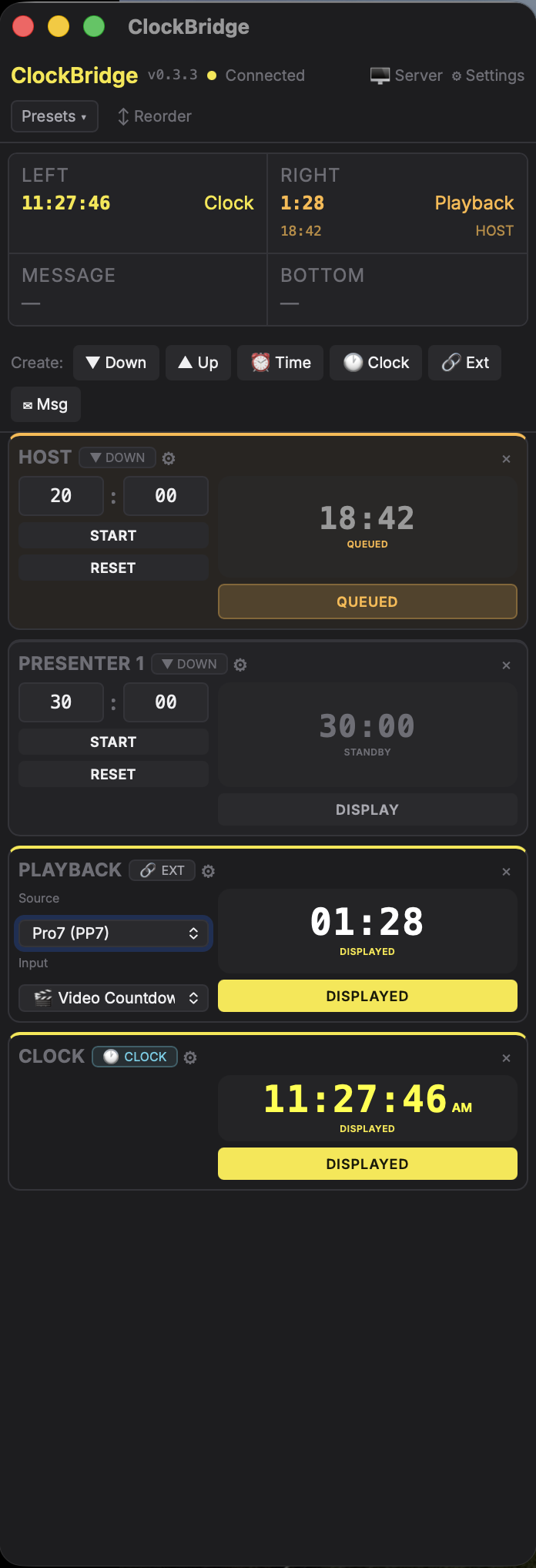
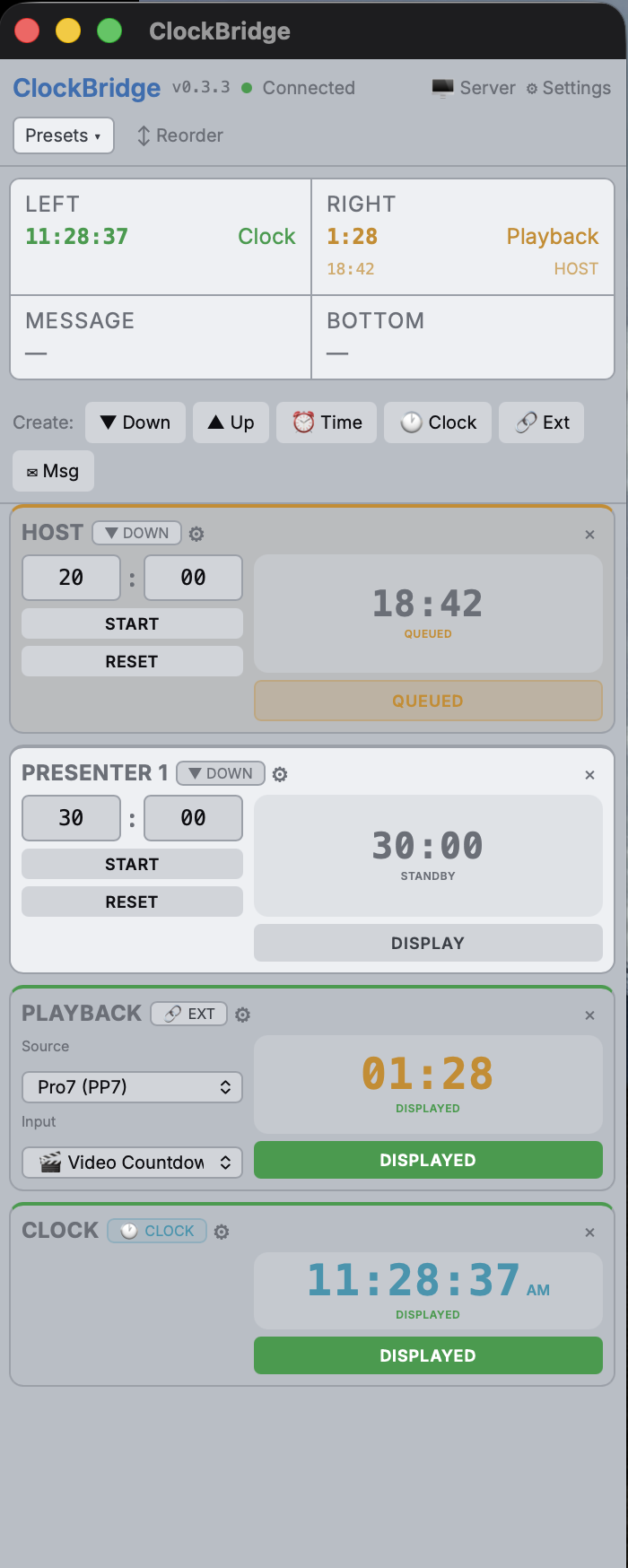
User control interface
ClockBridge control interface
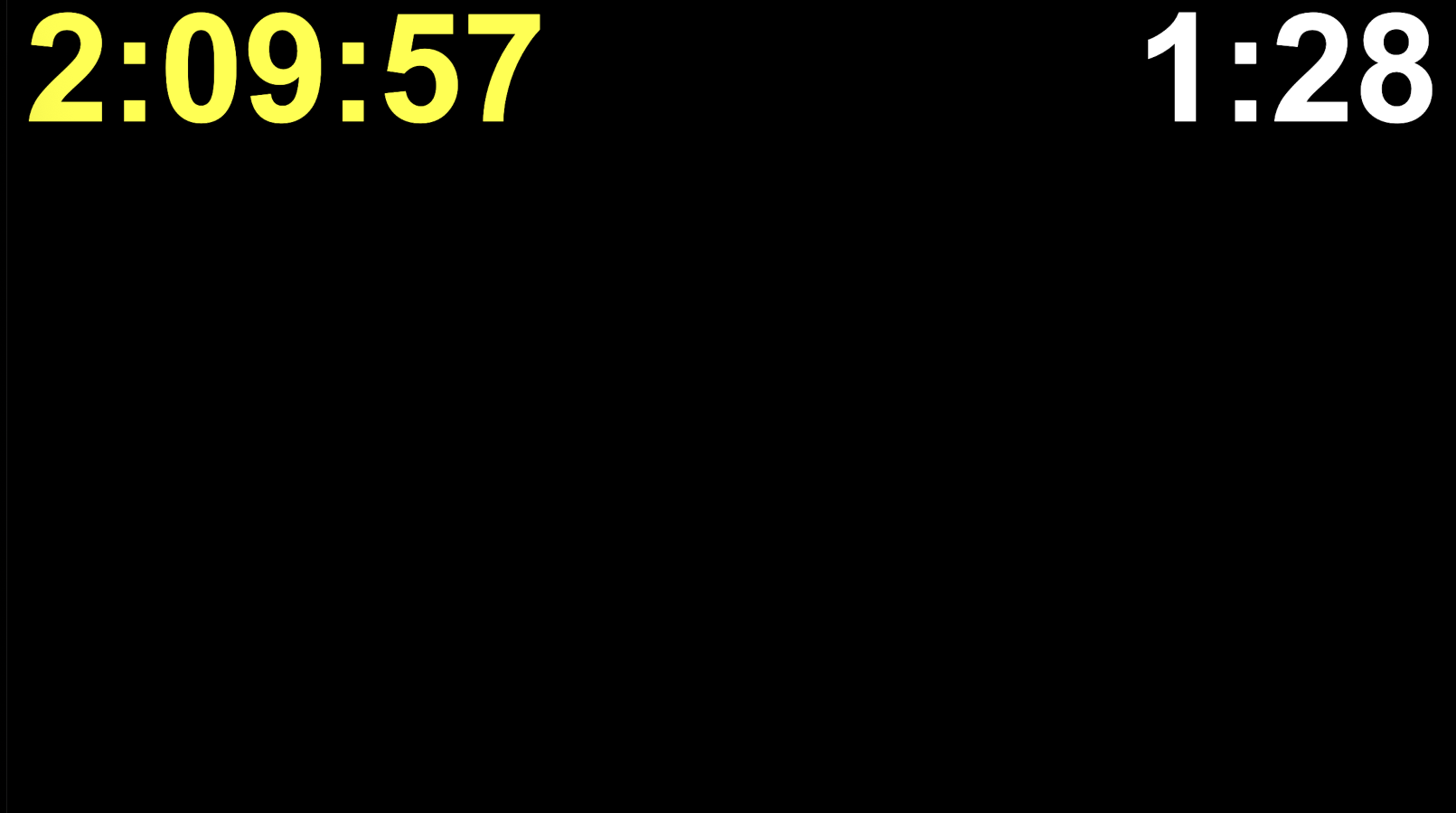
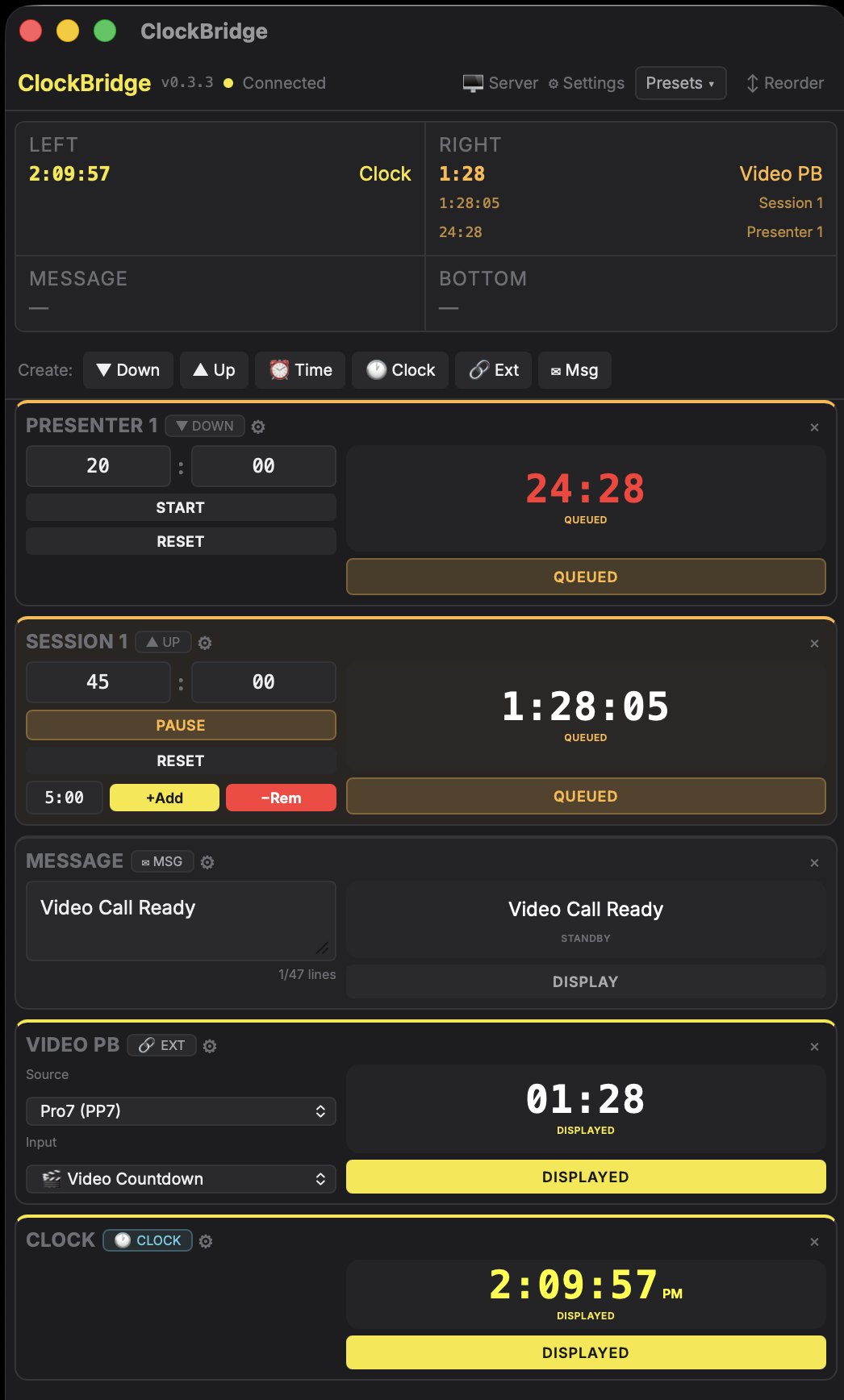
Live display output
ClockBridge live output display

Clock types

Everything a live event needs to show.

Five clock types cover every timing scenario: from a presentation countdown to a live message on the presenter's confidence monitor.

23:45
Count Down
Set a duration. Counts to zero, then optionally keeps running into negative time.
04:22
Count Up
Starts at zero and counts upward. Useful for elapsed time or open-ended segments.
11:30 AM
Count to/from Time
Count down to a scheduled time, or count up from when something started.
10:48 AM
Time of Day
Shows the live clock. No controls: just the time, always accurate.
"Please wrap up, 2 minutes remaining"
Message
Display a text message in any output window. Optional auto-hide after a set duration.

Clock windows

You define the layout. Pixel by pixel.

Create named clock windows and place them anywhere on your 1920×1080 output canvas. Each window has its own position, size, font, color, and alignment, configured once and saved. Then assign timers to each window. When one ends, the next in the queue takes over automatically.

Position X / Y in pixels: place it exactly where you need it
Size W × H, independent per window
Font & size Any system font, any size (200px default)
Color Per window, with optional "share to network" for sync
Alignment Left, center, or right within the window
LEFT 12:59:59
RIGHT 12:59:59
MESSAGE 12:59:59
BOTTOM 12:59:59

Operator workflow

You design the layout. The operator places each clock.

You configure window names, positions, sizes, and fonts once in server settings. Then during a show, the operator taps the gear on any clock and selects which window it should appear on. LEFT, RIGHT, MESSAGE, or BOTTOM: one tap, instant output.

PRESENTER 1 ▼ DOWN ⚙ ✕
DIRECTION
Down Up
DISPLAY ON
LEFT RIGHT MESSAGE BOTTOM
20 : 00
START
RESET
20:00 STANDBY
DISPLAY

External sources

Mirror timers from the tools you already run.

Connect ClockBridge to your existing production software. Pull a timer directly from any of these sources and display it in your windows: you control the display, not the original timer.

ProPresenter Pull ProPresenter countdown timers directly into ClockBridge display windows
QLab Mirror a QLab cue's elapsed or remaining time
Resolume Link to a Resolume clip or layer timer
Pro Video Player Display PVP playback time in any output window
Blackmagic HyperDeck Mirror HyperDeck playback time into any display window
Other ClockBridge instances Share timers across multiple ClockBridge servers on the same network, useful for multi-room campuses or backup machines

Latency offset — every external source supports a configurable offset to compensate for network or signal delay, keeping your displayed time frame-accurate.

Audio cues

Keep your eyes on the room.

ClockBridge can announce "Five minutes remaining", "Two minutes", "One minute", "Thirty seconds", then count down the final five seconds out loud. Route this to your comms system or the control room speakers for the whole crew to hear.

05:00 "Five minutes remaining" TTS
02:00 "Two minutes remaining" TTS
01:00 "One minute remaining" TTS
00:30 "Thirty seconds" TTS
00:05 "Five" · "Four" · "Three" · "Two" · "One" TTS

01 — Server

Install the server on a computer of your choosing.

ClockBridge Server runs as a background service on any Mac on your network. Install it once and it's always ready.

02 — Control

Control from a web browser or our dedicated app.

Open the web UI on any device, or use the native Mac app for a sharper experience. Punch in the IP address of the server and you're ready to go.

03 — Integrate

Trigger from your existing control platforms.

The official Companion module gives you full timer control from any Stream Deck or hardware panel. Also integrates with OSC and RossTalk.

Server configuration

Set it up once. Operators get exactly what they need.

ClockBridge separates the server from the control UI. As the technician, you decide which features are available: turn off what your team doesn't use, enable what they need. Per-type defaults mean each new timer type behaves consistently from day one.

Changes apply globally and take effect immediately, no restart required.

Down Up Time Clock Ext Msg
GLOBAL FEATURES
Messages
Allow text message timers in the control interface
External Sources
Enable timers driven by ProPresenter, ClockBridge, or AMP sources
Scheduled Timers
Create timers that start automatically at scheduled times
PER-TYPE DEFAULTS
Overrun
Continue counting when timer reaches zero
Red on overrun
Display turns red when timer overruns
Negative display
Show negative sign during overrun (e.g. -0:05)
Color Warnings
Change display color as timer approaches zero
Auto-cue
Automatically queue timers onto the display when started
Show queue in preview
Display cued timers below the active clock in the preview bar
Auto-roll
Automatically display timer when it starts running
Voiceover (TTS)
Speak time milestones and countdowns aloud

Also included

More than you might expect.

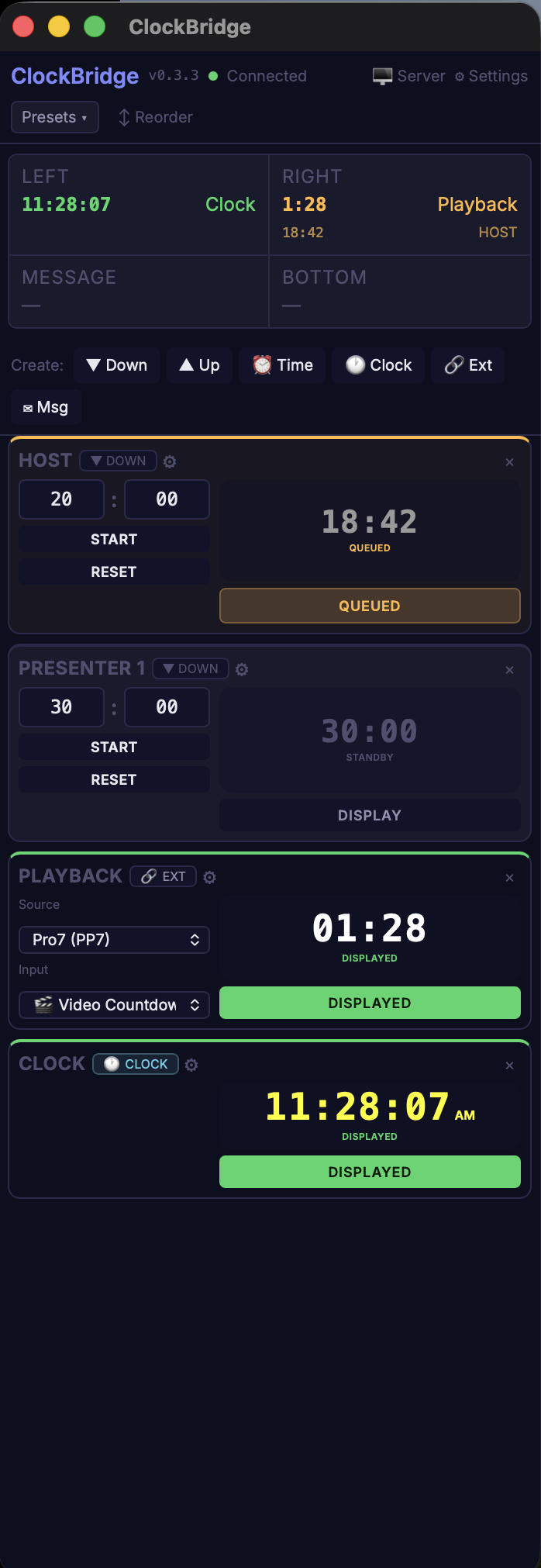
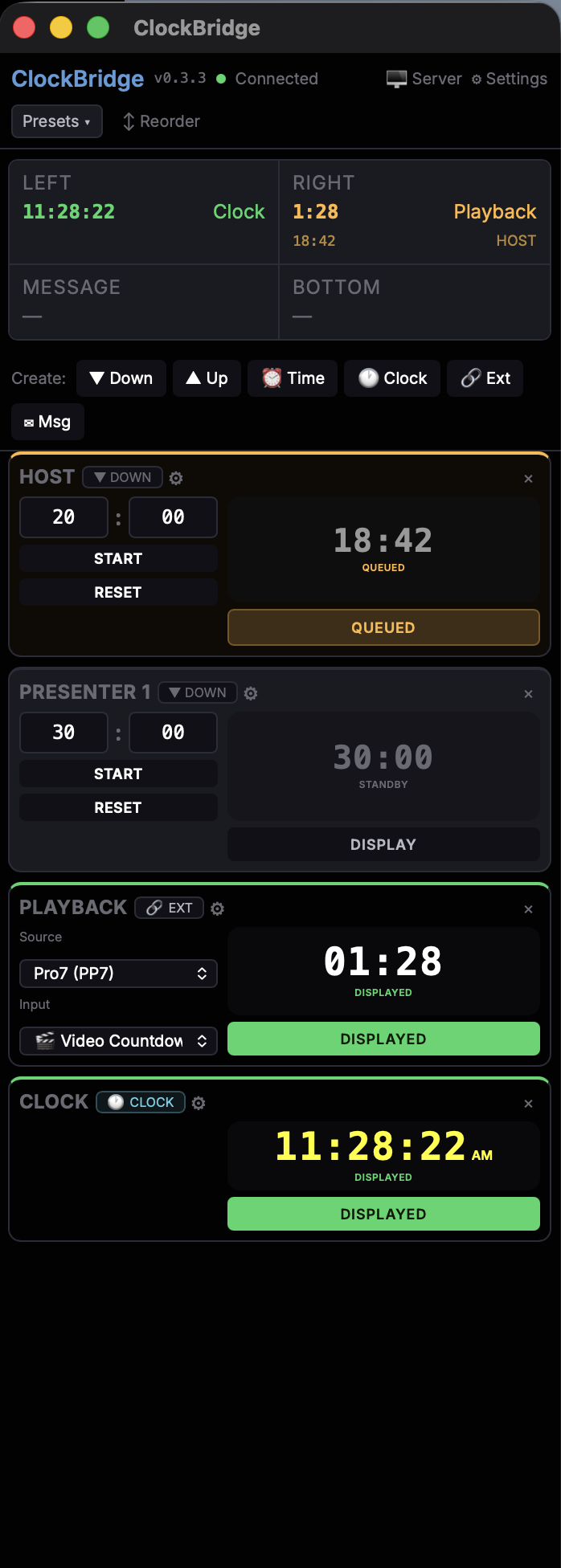
Four UI skins

The control interface adapts to your environment. Same features, different visual personality.

Fluoro skin
Fluoro
Dark skin
Dark
Classic skin
Classic
Light skin
Light
NDI integration NDI output brings ClockBridge into any app that accepts an NDI source — including ProPresenter, where it integrates directly into Stage Display so your presenter sees the countdown on their confidence monitor with no extra hardware.
OSC control Full timer control via OSC commands: integrate with QLab, Resolume, or any show control system that speaks OSC.
RossTalk input Control timers from ProPresenter, Ross Video switchers, or any RossTalk-compatible hardware over TCP. Start, stop, reset, display, hide, mute, or unmute any timer by API ID.
LTC input Feed SMPTE Linear Timecode into ClockBridge via audio input and use it as a timer source, with frame-accurate sync to broadcast and recording systems.
LTC display Display the incoming LTC timecode value in any output window, in HH:MM:SS:FF format.
High Contrast mode Cyan, magenta, and yellow color assignments for red-green colorblind operators. WCAG AA minimum across all skins.
Scheduled timer lists Build a schedule that rebuilds your entire clock list automatically: every weekly show, every Monday all-hands, any recurring event.
Clock presets Save any timer configuration as a named preset and recall it instantly. Build a library of your most-used countdowns and clocks.
Config presets Export your entire server configuration as a preset file. Commission a new system from scratch in seconds by importing it on any machine.
Shared clock windows Connect multiple ClockBridge instances and share clock window outputs between them. One timer, multiple display systems, all in sync.
Video end offset Videos often have credits or a black frame at the tail end. Pause the video playback where you want the clock to finish, and use the Learn workflow to tell ClockBridge exactly when each clip's usable content ends — the countdown matches the screen, not the clip length.
Ignore list Flag specific clips, cues, or presentations so ClockBridge skips them entirely — bumpers, stingers, and background loops won't affect your timer. Works with ProPresenter, QLab, Pro Video Player, and Resolume.

Built for the way you actually run a show.

ClockBridge is in open beta. Two steps and you're running.

Step 1

Join our Discord

Engage with other users and get your beta activation key.

Join the Discord
Step 2

Download the app

The Server needs your activation key. The User app and the Companion module don't.

macOS Server User Windows Server User Bitfocus Companion Companion Module
macOS 12+  ·  Windows  ·  Setup guide